How to Add an Alias Domain in DirectAdmin
Last updated Changelog
On this page
An alias domain shows exactly the same website as your main domain. It’s handy for other spellings or endings of your name, such as the .net version of your .com. DirectAdmin calls it a domain pointer. In this example we make shop.cranedemo.com an alias of our main domain, directadmin.cranedemo.com.
Want a different website on the new domain instead? Add it as a separate domain. Want visitors to end up on your main address? Use a redirect.
Before you start
- The domain must already be registered.
- Set its nameservers to NameCrane at your registrar. See Point your domain to NameCrane. You can add the alias first and change the nameservers afterwards.
Steps
-
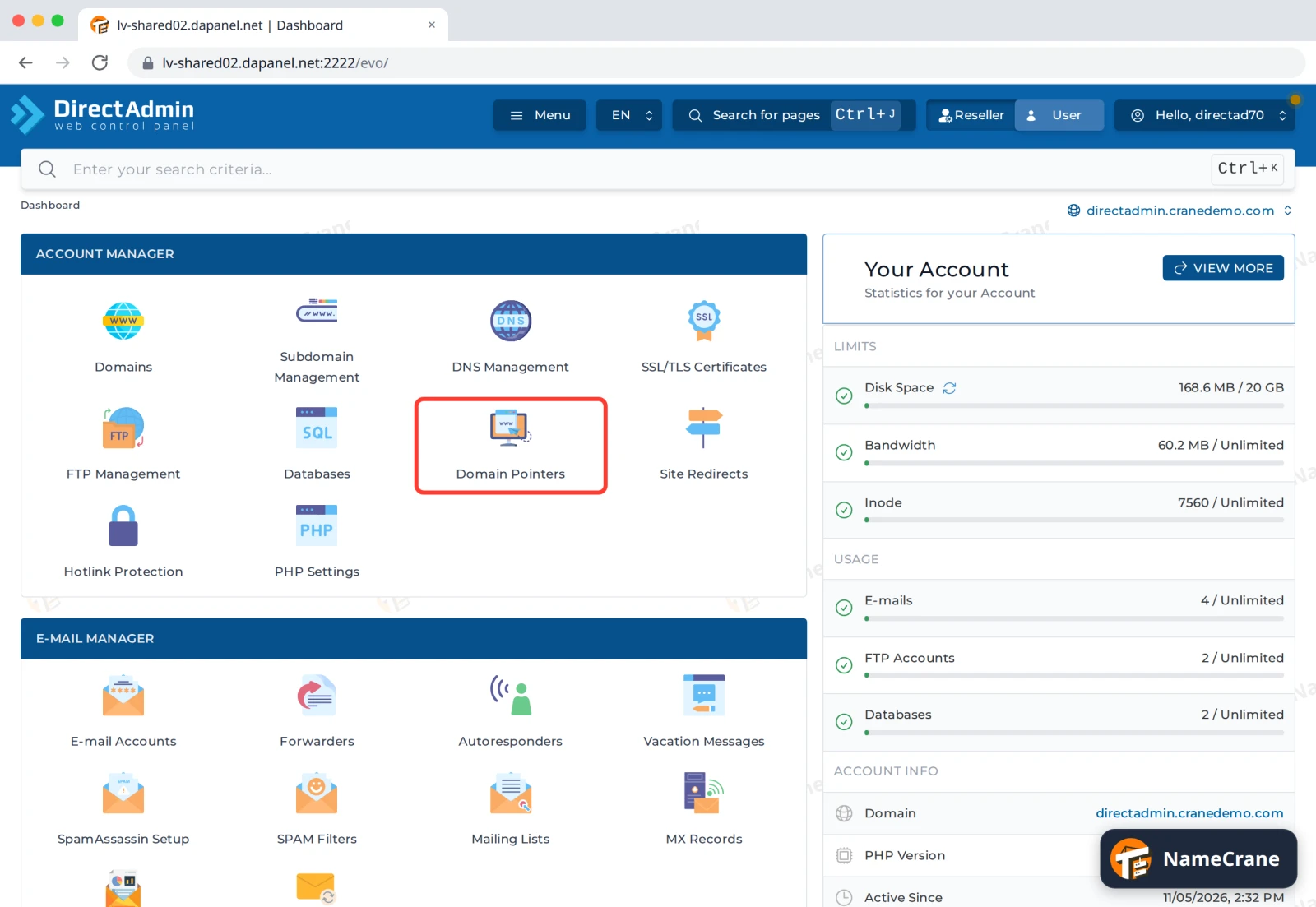
Log in to DirectAdmin. In the Account Manager section, click Domain Pointers.
-
Check the domain at the top right is the website the alias should show. If you have more than one domain, click it to switch.
-
Under Create new domain pointer, type the new domain in Source domain, without
wwworhttp://. Leave Target domain empty: it uses the domain at the top right. Leave Create as an alias ticked. That’s what makes it an alias, rather than a pointer that just redirects visitors. Click Create Pointer.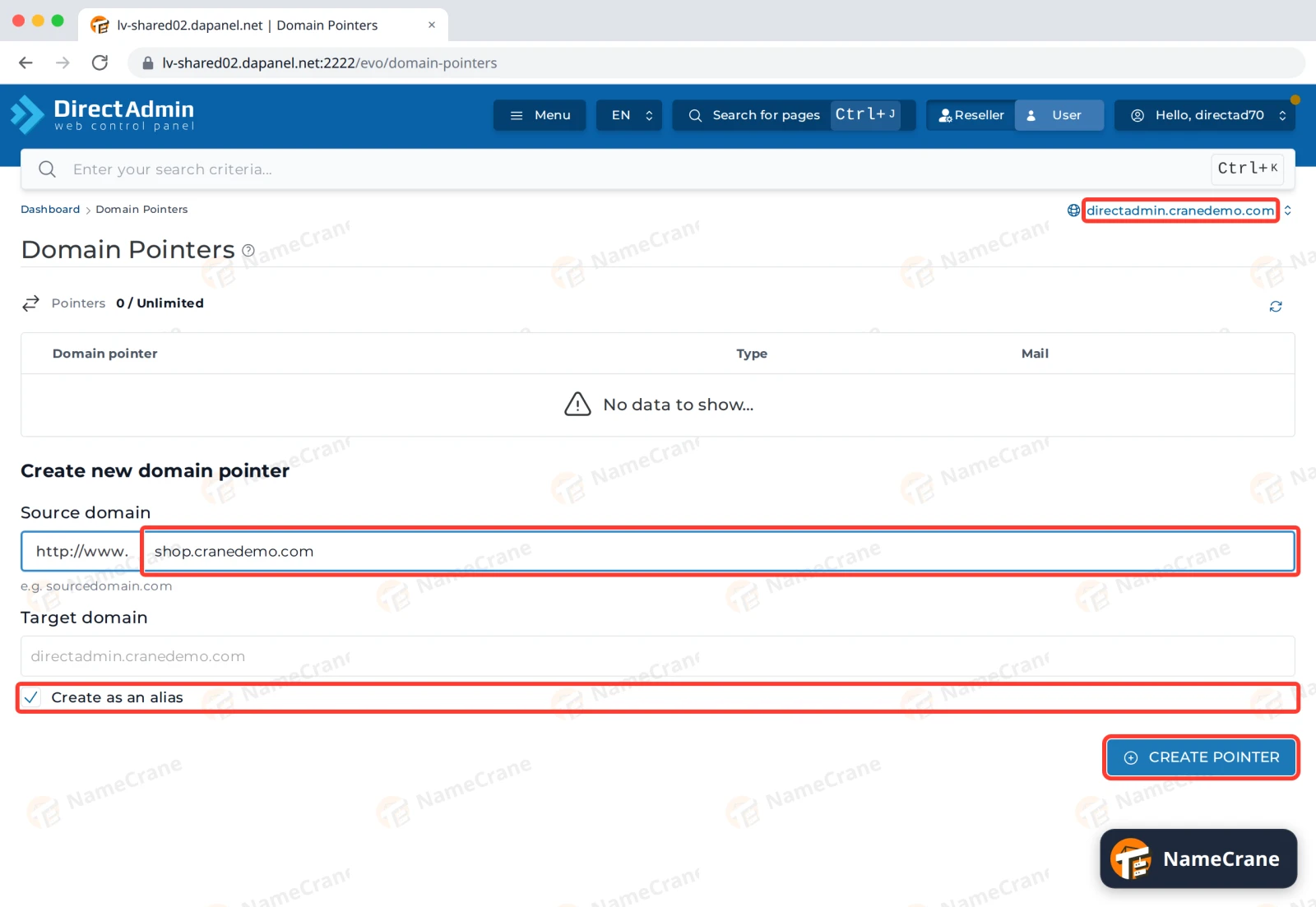
-
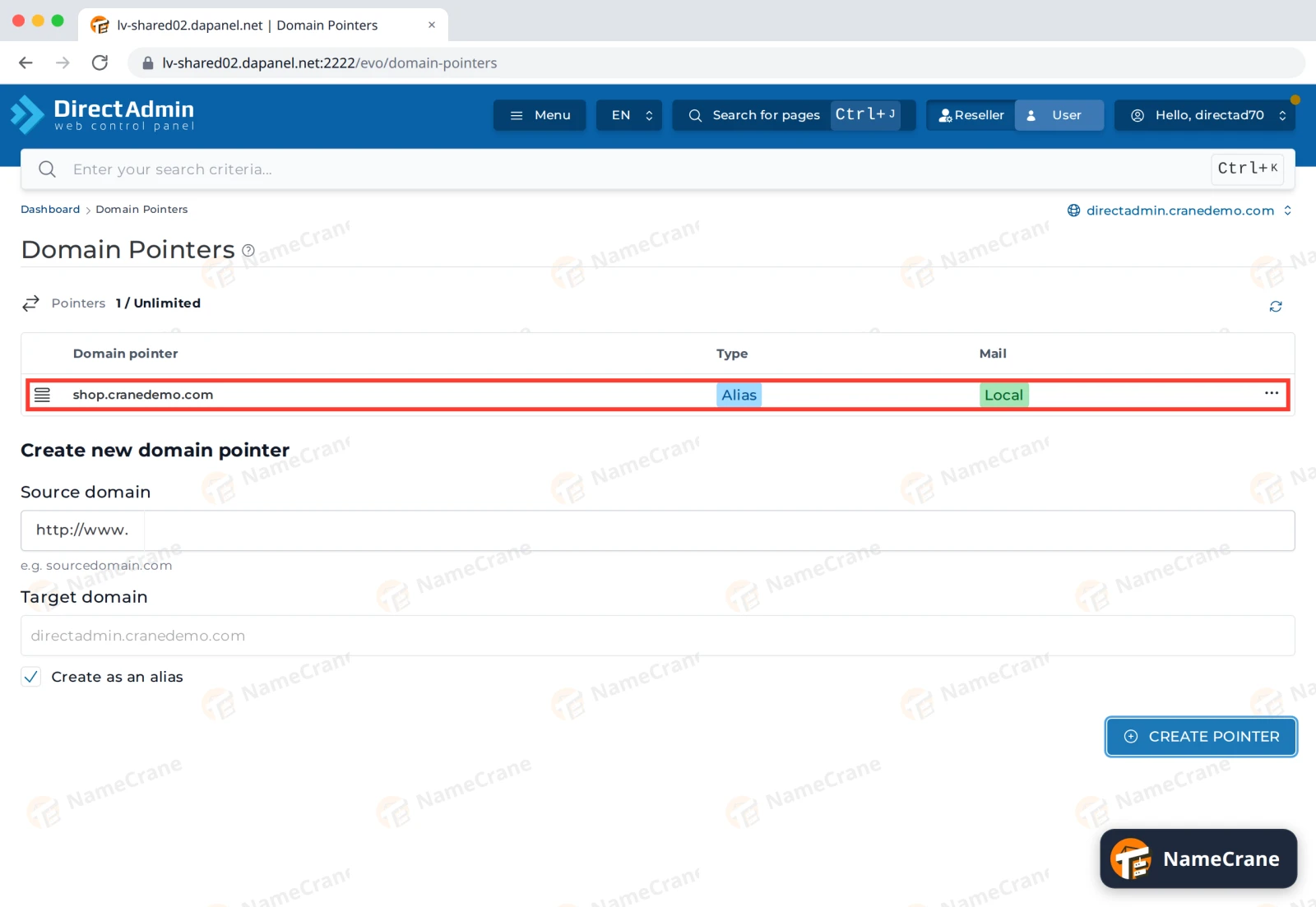
The alias appears in the list, with Alias as its type.
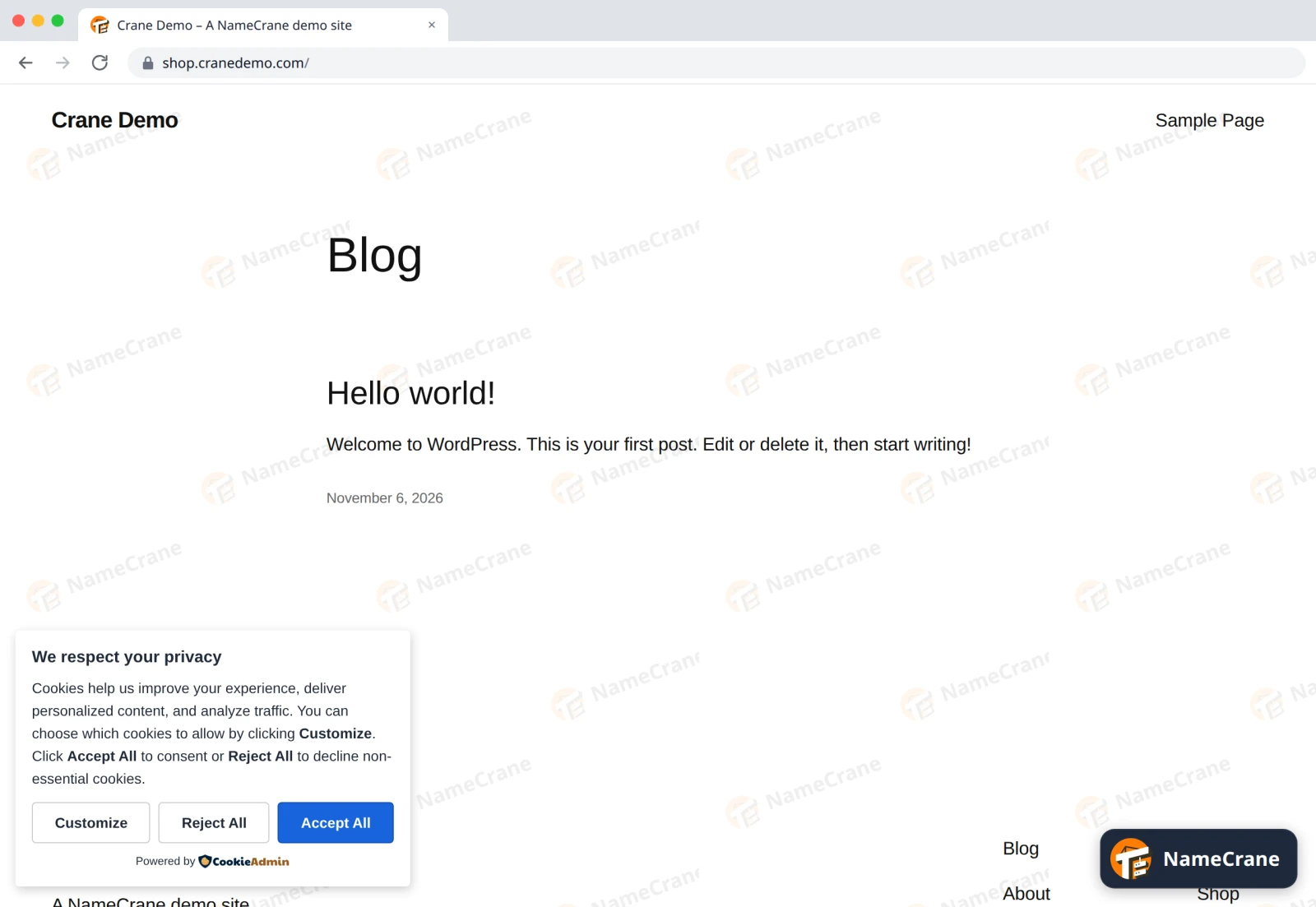
Once the domain’s nameservers point to NameCrane, visitors to the alias see your main website. In our test, the alias worked about two minutes after we created it.
DirectAdmin also gets a free SSL certificate for the alias by itself, so https:// works too. Ours arrived about seven minutes after we created the alias. Until then, browsers show a security warning for it.
Note: On a WordPress site, the alias shows your home page, but the links on it lead to your main domain. That’s normal: WordPress always uses its own address.
Note: Email to the alias isn’t set up for you. If you want to receive email at the alias, contact support and we’ll set it up.
Troubleshooting
| Problem | What to do |
|---|---|
| The alias doesn’t load yet | Check the domain’s nameservers at your registrar. After you change them, it can take a few hours before the change works everywhere. |
The browser shows a security warning on https:// |
The certificate isn’t there yet. Open SSL/TLS Certificates and click Provision Now. See Free SSL. |
| The alias sends visitors to your main domain instead of showing the site | Create as an alias was unticked. Click ⋯ next to it in the list, choose Delete, and add it again with the box ticked. |
| The alias shows a different website | Check the domain at the top right of Domain Pointers. The alias belongs to that domain: delete it and add it again under the right one. |
| DirectAdmin says the domain already exists | The domain is already on our servers in another account. Contact support and we’ll check it for you. |
Snagged on something? Contact support and we’ll get you sorted.