How to Forward Email to Another Address in cPanel
Last updated Changelog
On this page
A forwarder sends a copy of every email for one address to another address. For example, you can send everything for info@yourdomain.com to your own inbox, so you only have one inbox to check. The forwarded address doesn’t need its own mailbox.
Steps
-
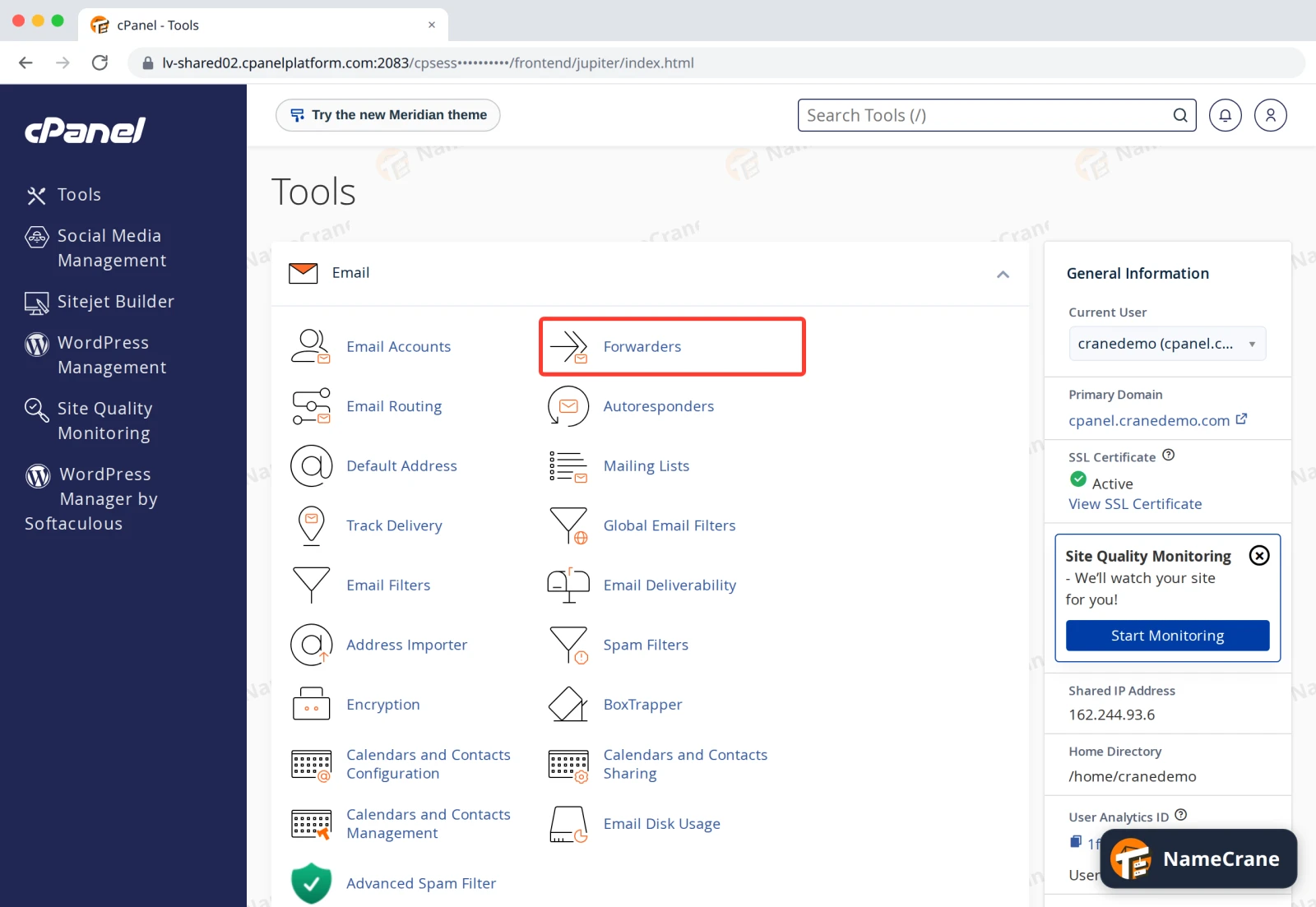
Log in to cPanel. In the Email section, click Forwarders.
-
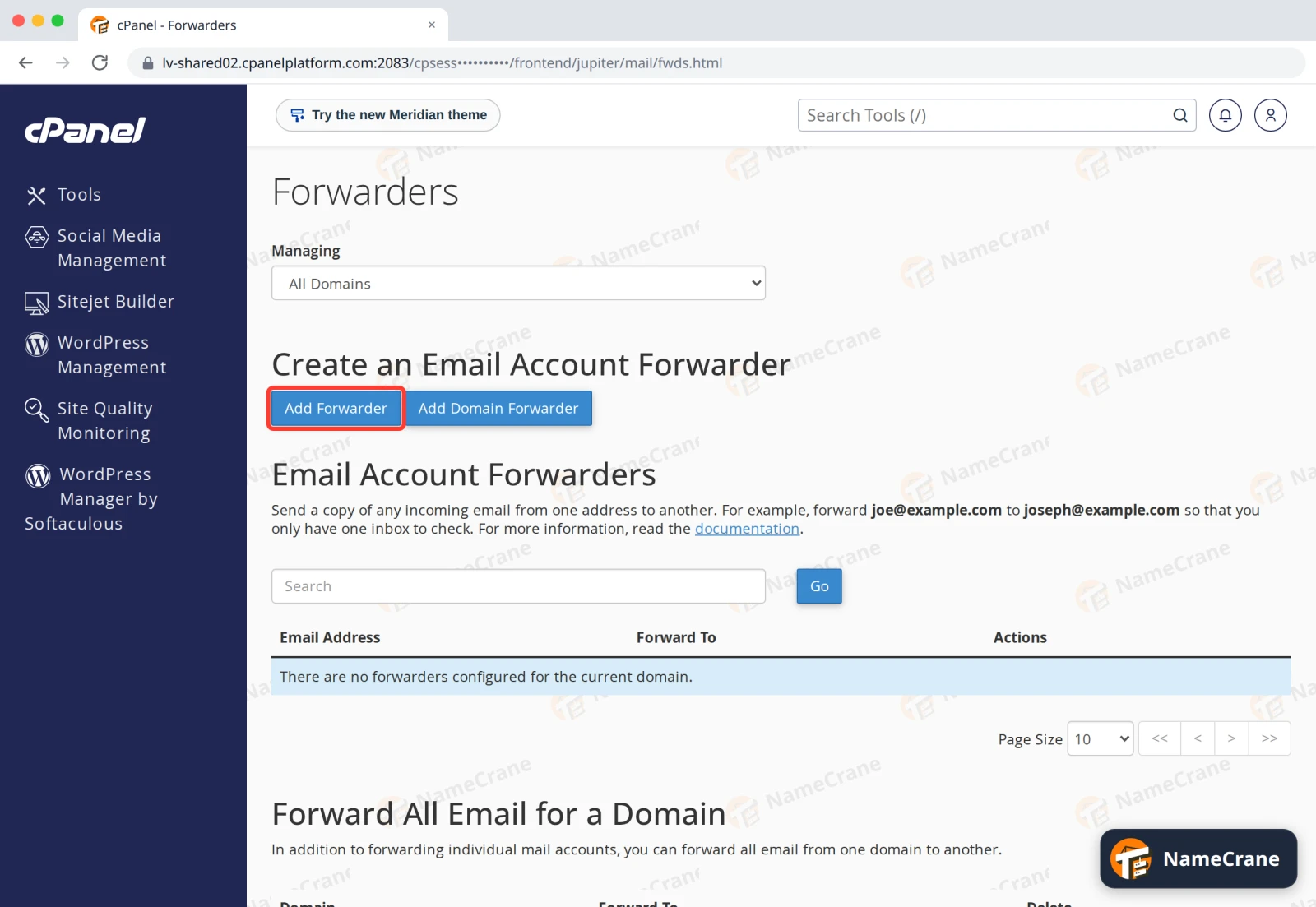
Click Add Forwarder.
-
In Address to Forward, type the part before the
@(such asinfo) and choose the Domain. Under Destination, leave Forward to Email Address selected and type the address to send the email to. Click Add Forwarder.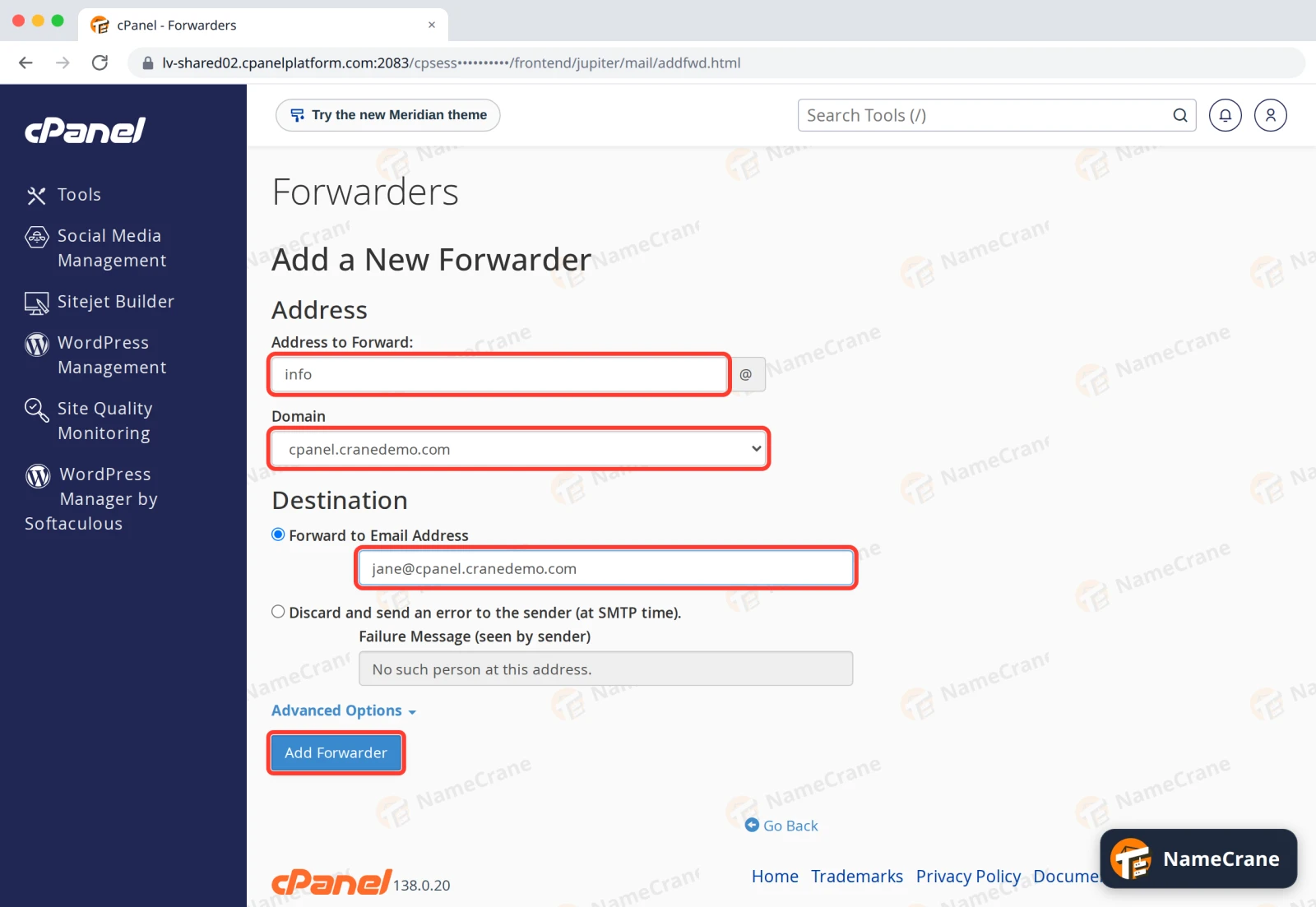
-
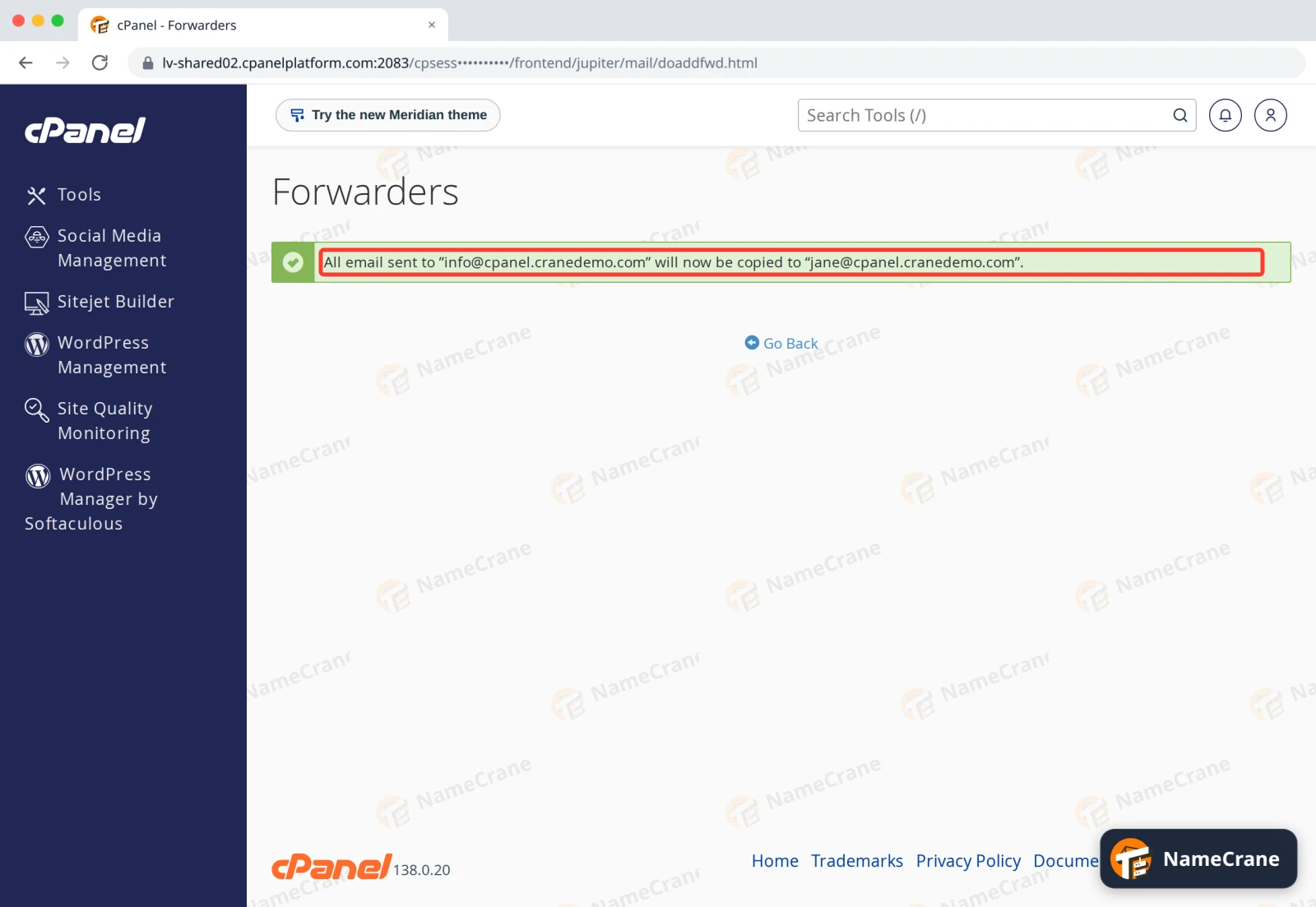
cPanel confirms that all email sent to the address will now be copied to the destination.
-
Click Go Back. The forwarder is listed under Email Account Forwarders. To stop forwarding, click Delete next to it.
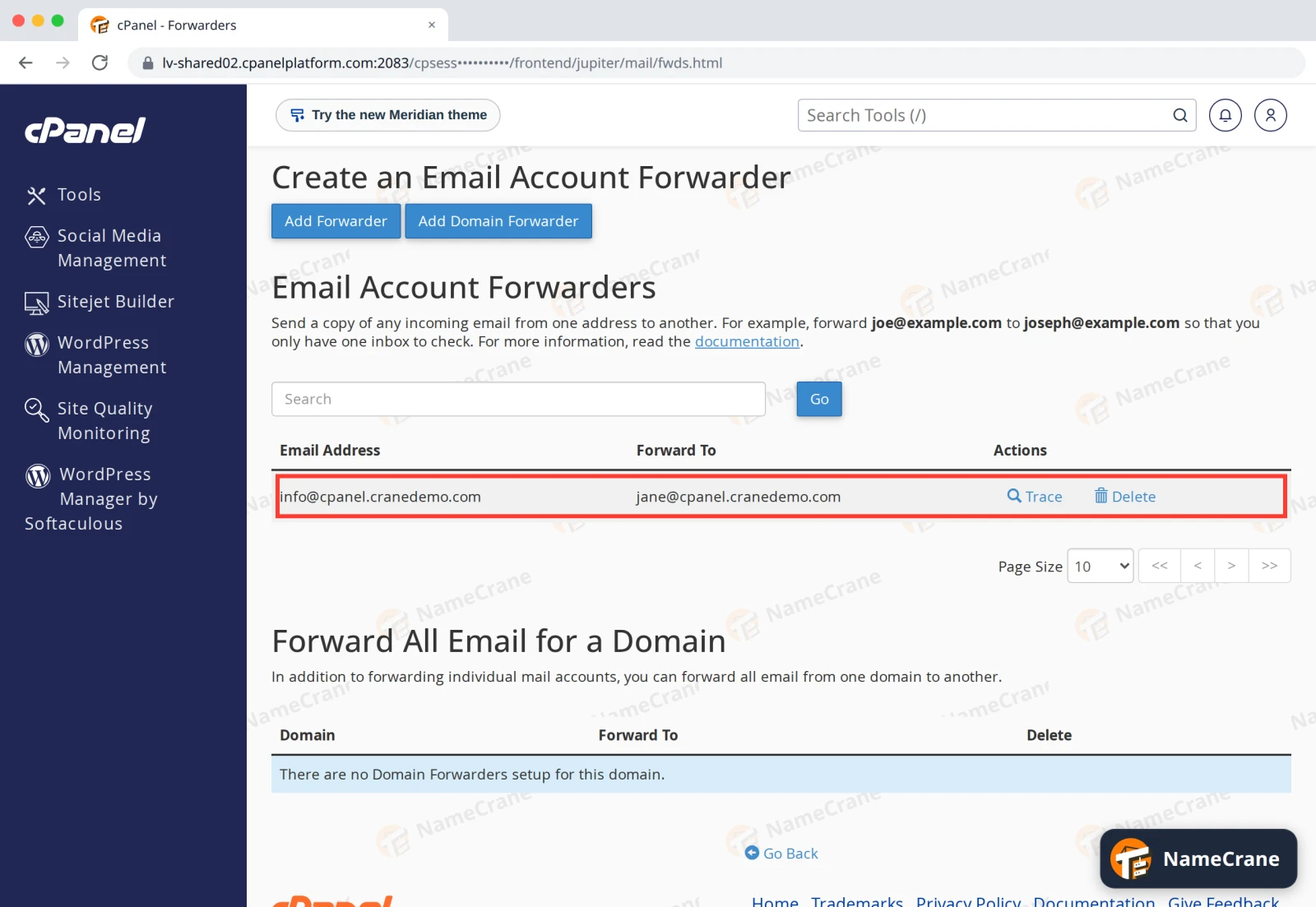
In our test, an email sent to info@cpanel.cranedemo.com arrived in Jane’s inbox within a minute.
Note: Your email passes through MXFilter’s spam filtering before it reaches the forwarder, so most spam is stopped before it’s forwarded. You can also set up forwarding in MXFilter itself, as an email alias.
Tip: To send all email for a whole domain to another domain, use Add Domain Forwarder instead.
Troubleshooting
| Problem | What to do |
|---|---|
| Forwarded email doesn’t arrive | Check the destination address is spelled correctly, and look in its spam or junk folder. Click Trace next to the forwarder to see where email for that address goes. |
| I want to keep a copy as well | If the address also has its own mailbox, the email is delivered there too. The forwarder only sends a copy. |
| I want to forward to several people | Add a forwarder for each destination, using the same Address to Forward. |
Snagged on something? Contact support and we’ll get you sorted.