How to Check Your Disk Space Usage in DirectAdmin
Last updated Changelog
On this page
Your hosting plan has a disk space limit, shared by your website files, your email and your databases. DirectAdmin shows how much you’ve used and what’s using it, so you know where to tidy up before you run out.
Steps
-
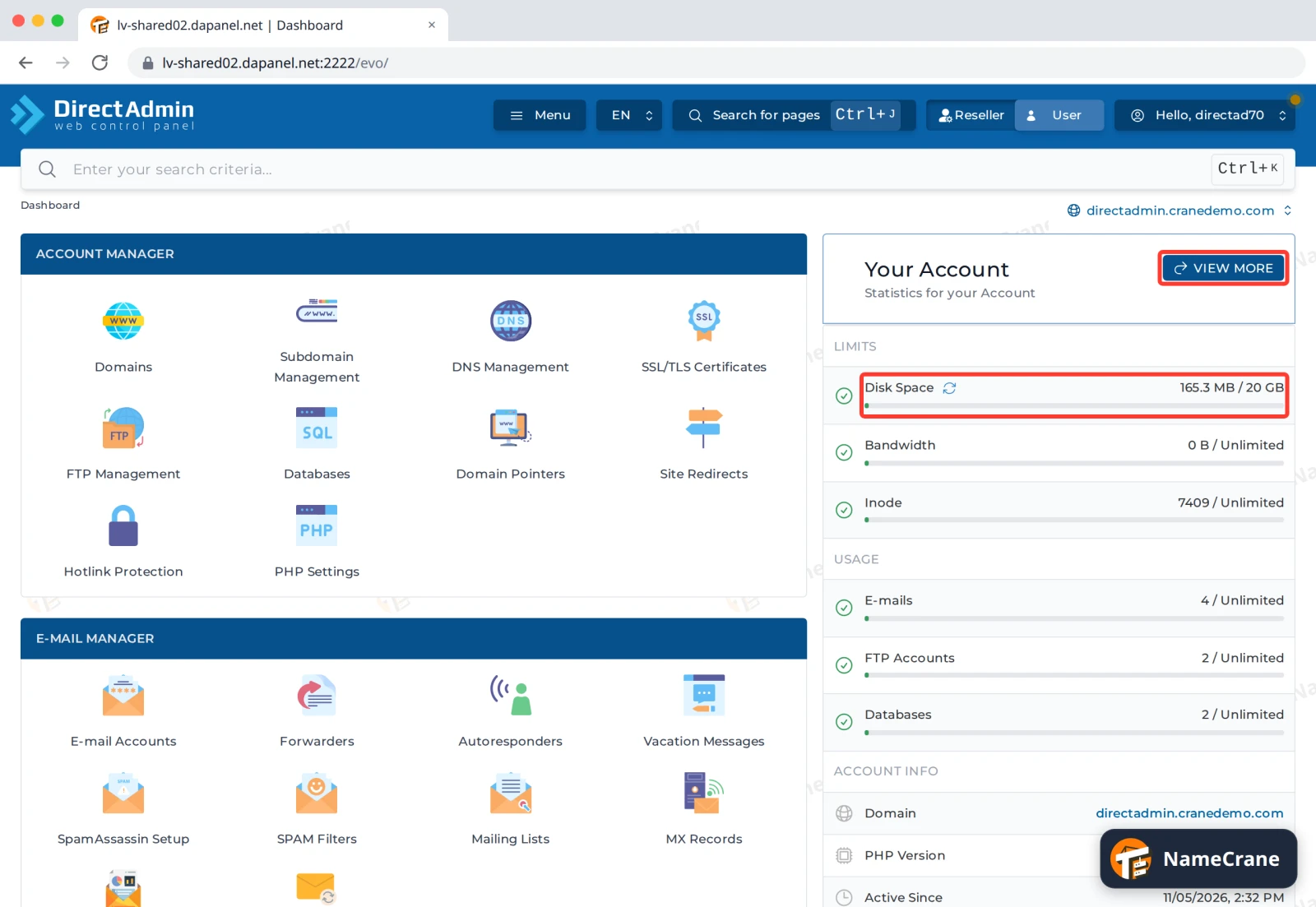
Log in to DirectAdmin. Disk Space on the right of the dashboard shows how much you’ve used out of your limit. Click VIEW MORE for the details.
-
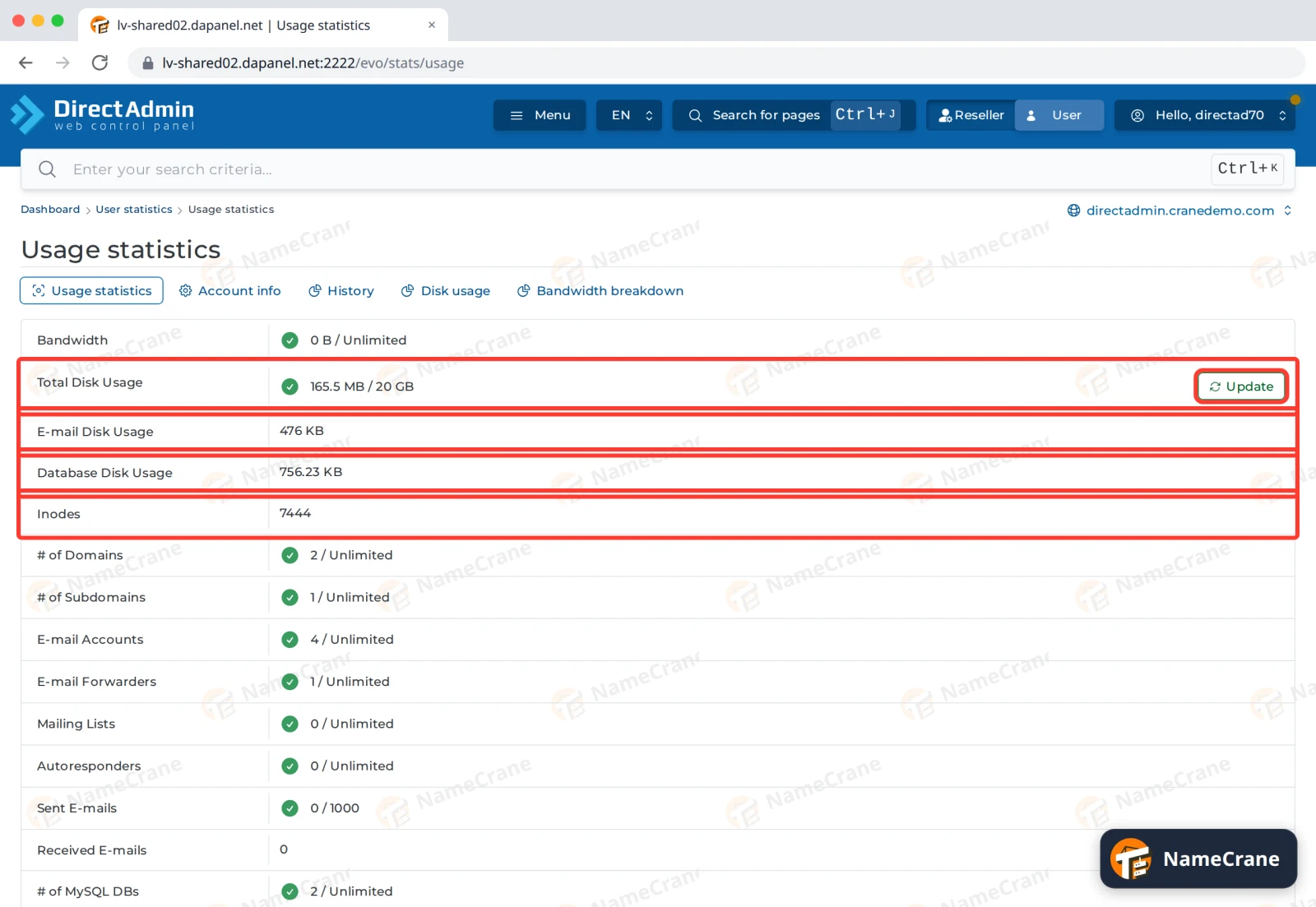
Usage statistics splits it up:
- Total Disk Usage: everything you’ve used, out of your limit. Click Update to refresh it.
- E-mail Disk Usage: all your mailboxes together.
- Database Disk Usage: your MySQL databases.
- Inodes: how many files and folders you have.
-
Open the Disk usage tab and click Expand next to System Quotas. You’ll see the space used by each domain’s files and by your email (
imapandMaildir).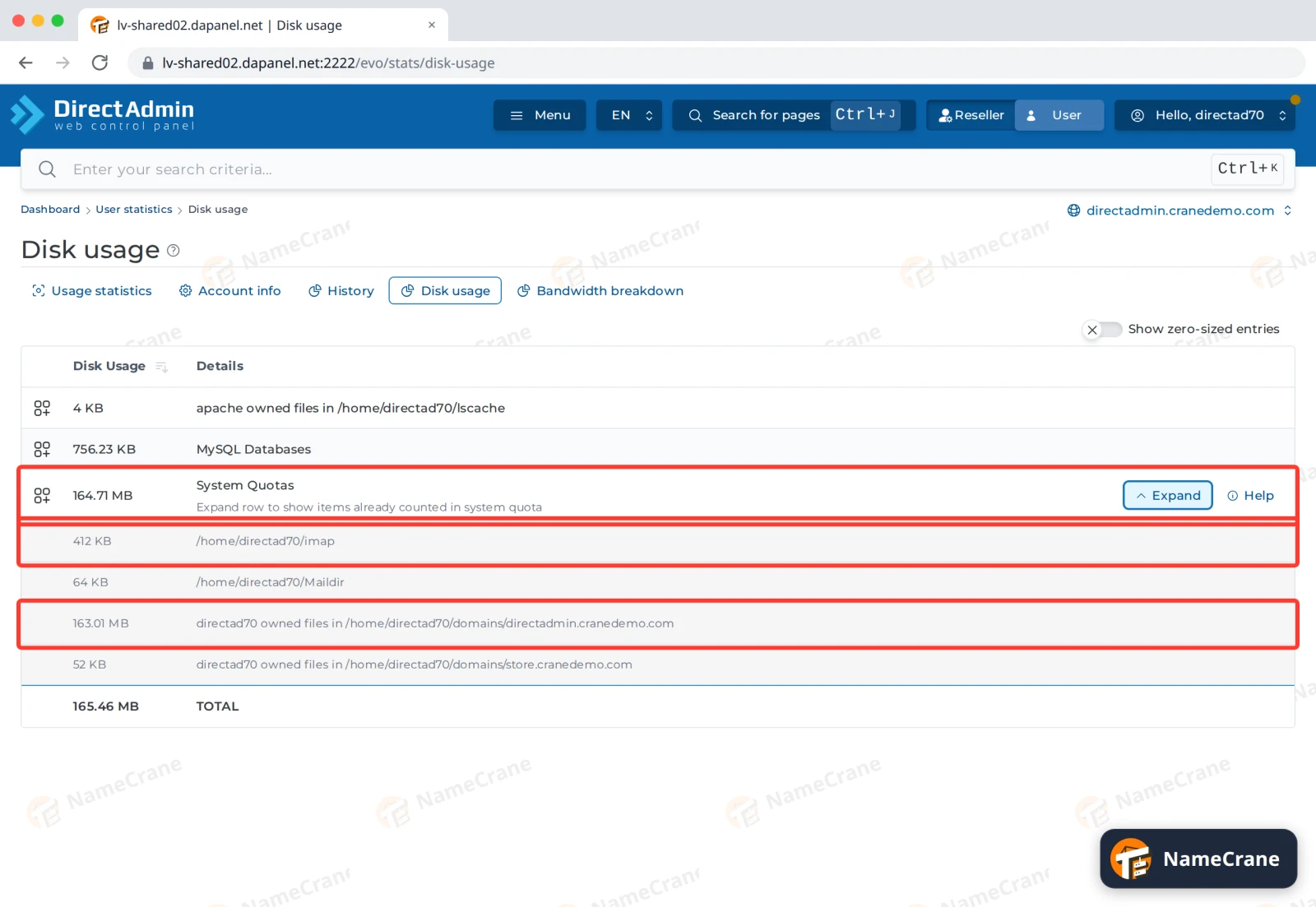
What usually uses the space
| What | Where to look |
|---|---|
| Website images and uploads | Your domain’s public_html folder in File Manager. On WordPress, mostly wp-content/uploads. |
| E-mail Disk Usage. E-mail Accounts shows how much each mailbox uses. | |
| Backups you made yourself | The backups folder in File Manager. Download them, then delete them from the server. See Download a backup. |
Troubleshooting
| Problem | What to do |
|---|---|
| The total hasn’t changed after I deleted files | Click Update next to Total Disk Usage. |
| I keep running out of space | Clear out old backups, big email attachments and unused files. If you still need more, upgrade your plan from your NameCrane client area. |
Snagged on something? Contact support and we’ll get you sorted.