How to Block an IP Address in cPanel
Last updated Changelog
On this page
If someone keeps spamming your forms or hammering your site, you can block their IP address. They’ll see a 403 Forbidden error instead of your website. In this example we block 162.244.93.3.
Block an address
-
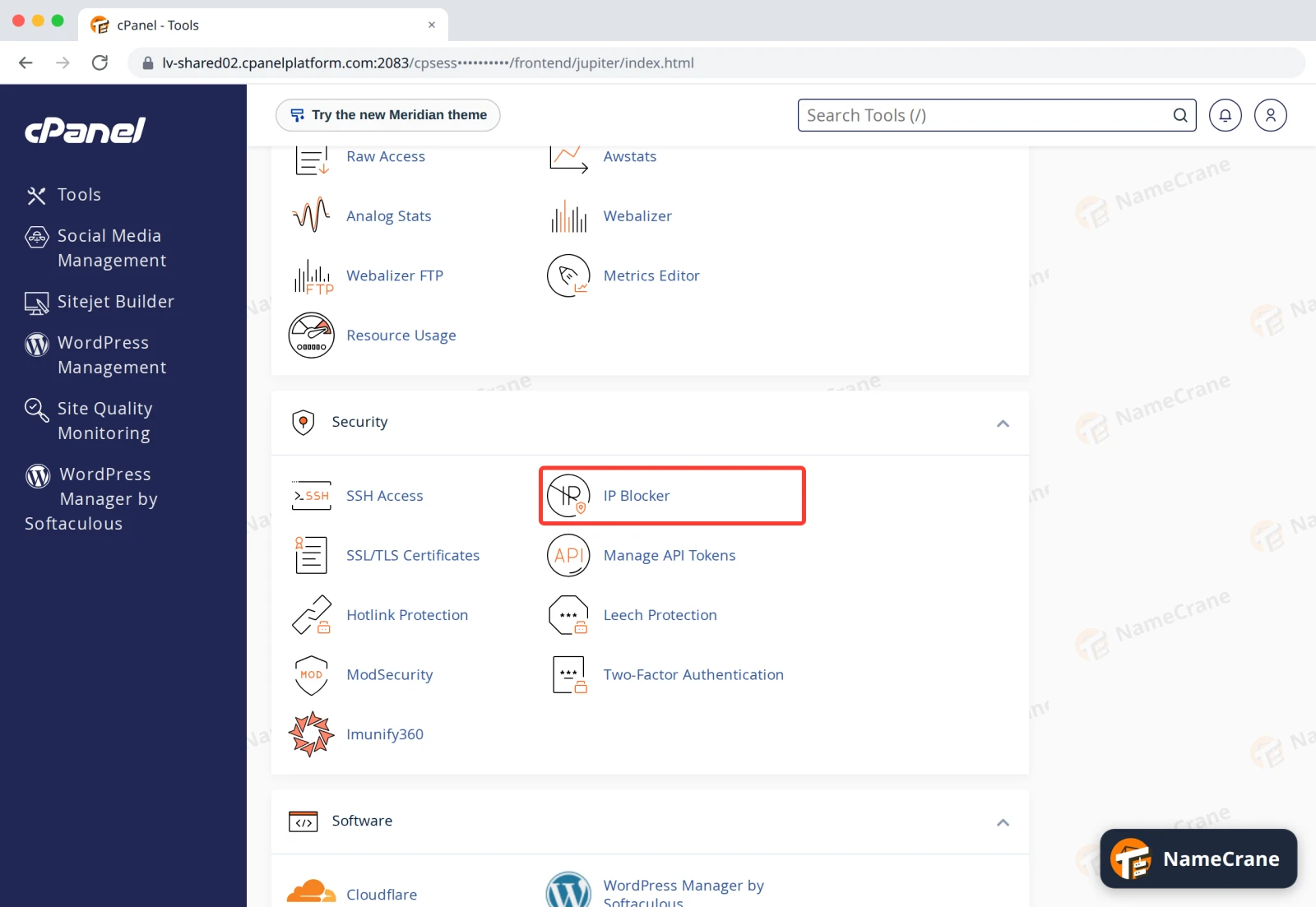
Log in to cPanel and click IP Blocker in the Security section.
-
Type the address into IP Address or Domain and click Add.
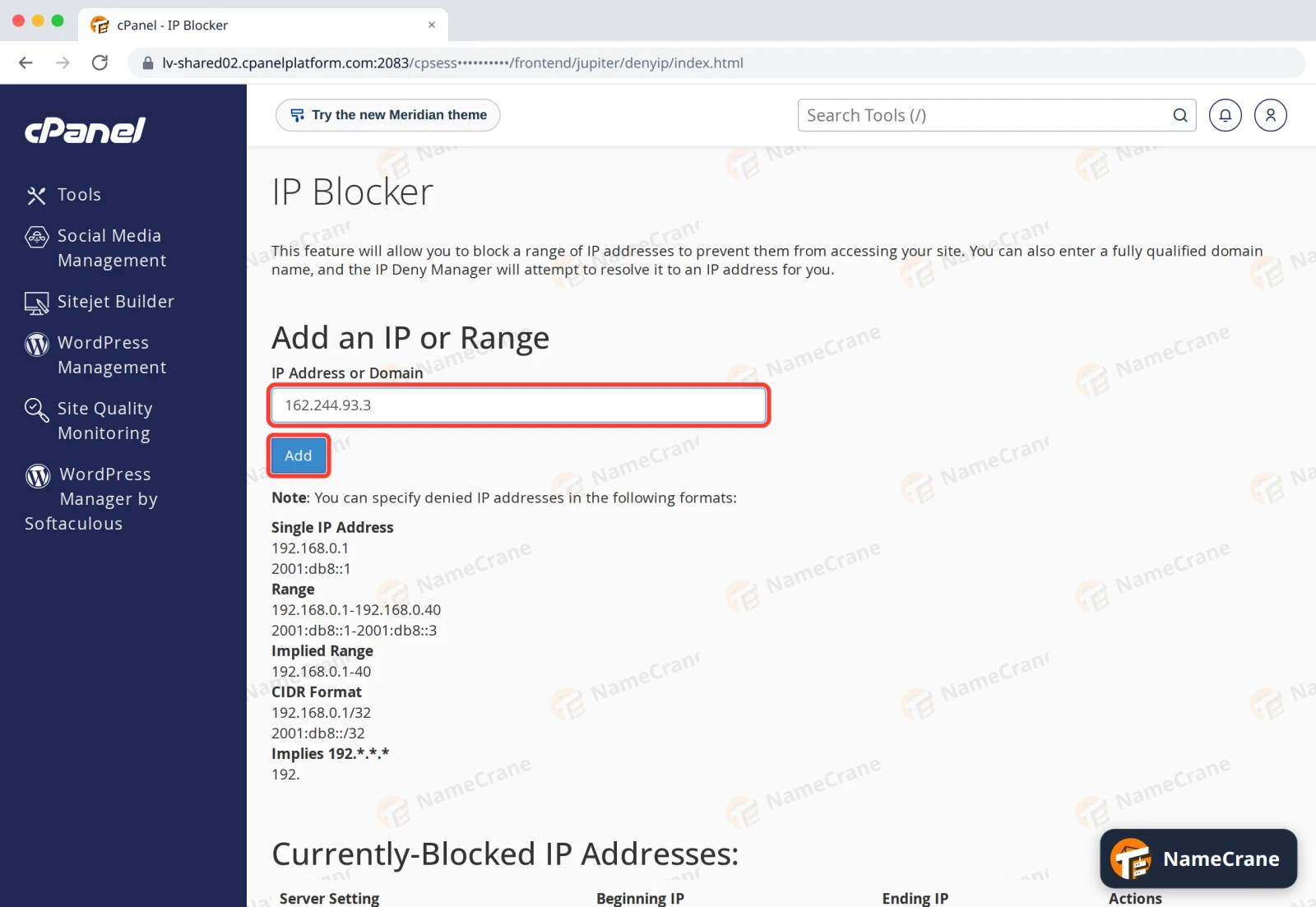
You can also block several addresses at once:
To block Type One address 162.244.93.3or an IPv6 address like2001:db8::1A range 162.244.93.1-162.244.93.40, or the short form162.244.93.1-40A whole network 162.244.93.0/24 -
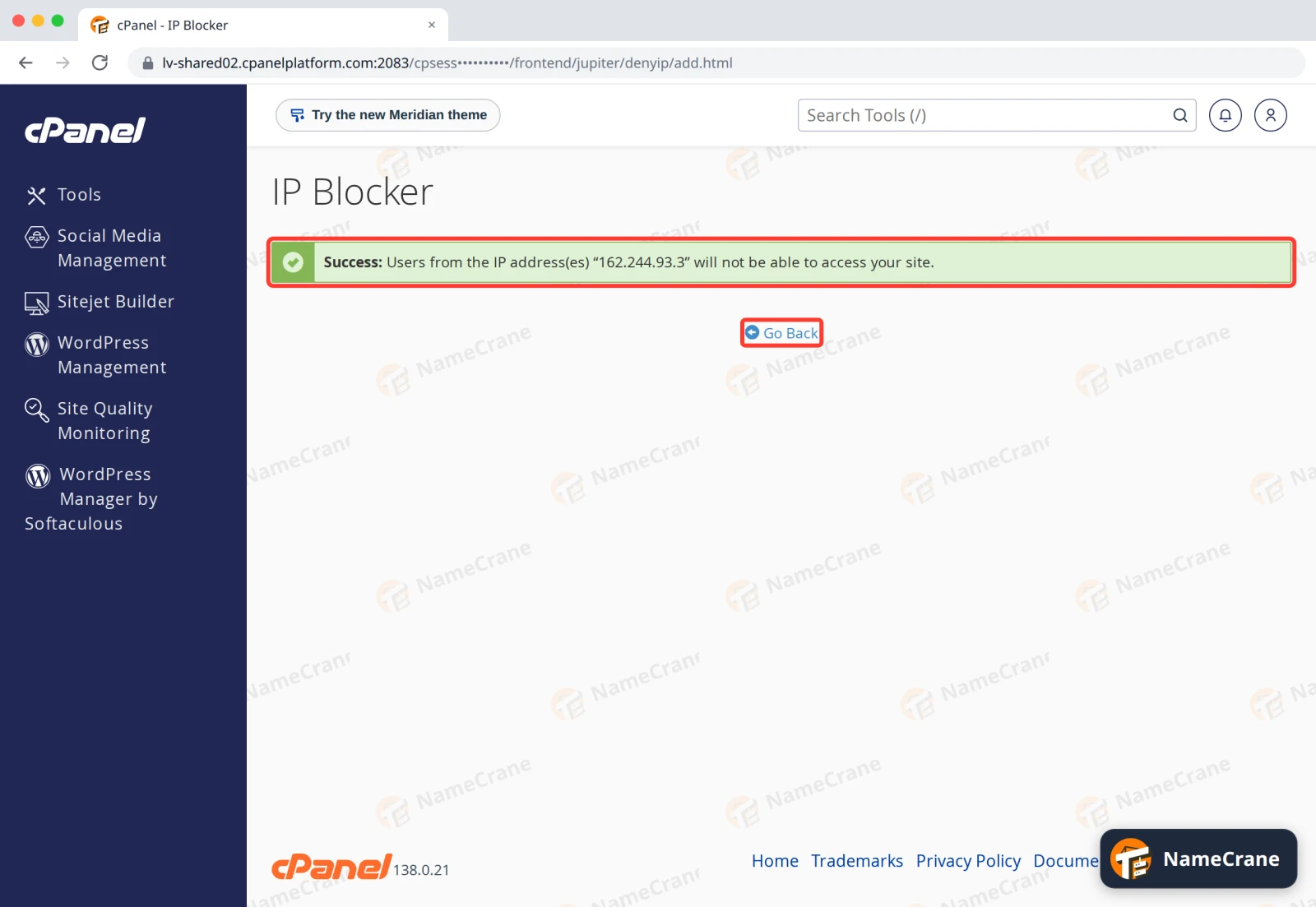
cPanel confirms that users from that address can no longer reach your site. Click Go Back.
-
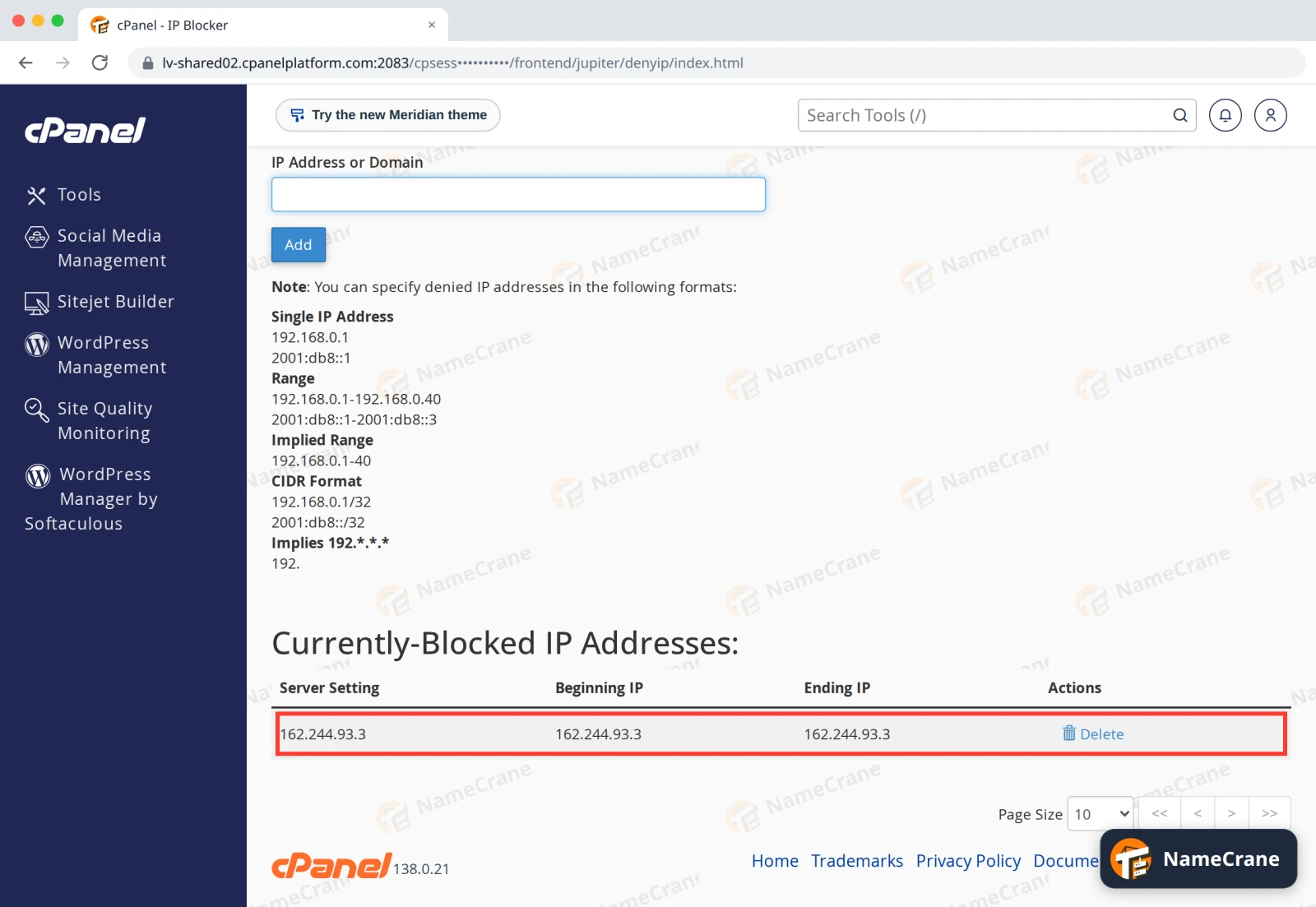
The address is listed under Currently-Blocked IP Addresses. In our test, that address got a 403 error straight away, while everyone else could still see the site.
cPanel adds the block to the .htaccess file of each of your websites, so it covers all of them. In our test, our subdomain blog.cpanel.cranedemo.com was blocked too. It only blocks your websites: email and FTP aren’t affected.
Note: Many visitors can reach your site over IPv6 as well as IPv4, and each has its own address. Block both if you know them. In our test, the blocked server still got in over IPv6.
Unblock an address
Click Delete next to the address. It can take up to a minute before that visitor can see your site again.
Troubleshooting
| Problem | What to do |
|---|---|
| The visitor can still reach my site | They may be using IPv6 or a different address. Check your visitor logs for the address they use and block that too. See Logs and visitor stats. |
| I blocked myself | You can still log in to cPanel. Open IP Blocker and click Delete next to your address. |
| I’m being attacked from lots of different addresses | Blocking them one by one won’t keep up. Contact support and we’ll take a look. |
Snagged on something? Contact support and we’ll get you sorted.