How to Run a Node.js or Python App in cPanel
Last updated Changelog
On this page
Besides PHP sites, your cPanel account can run Node.js and Python web apps. In this example we run a Node.js app at cpanel.cranedemo.com/hello, then a Python app at cpanel.cranedemo.com/hello-py.
Create a Node.js app
-
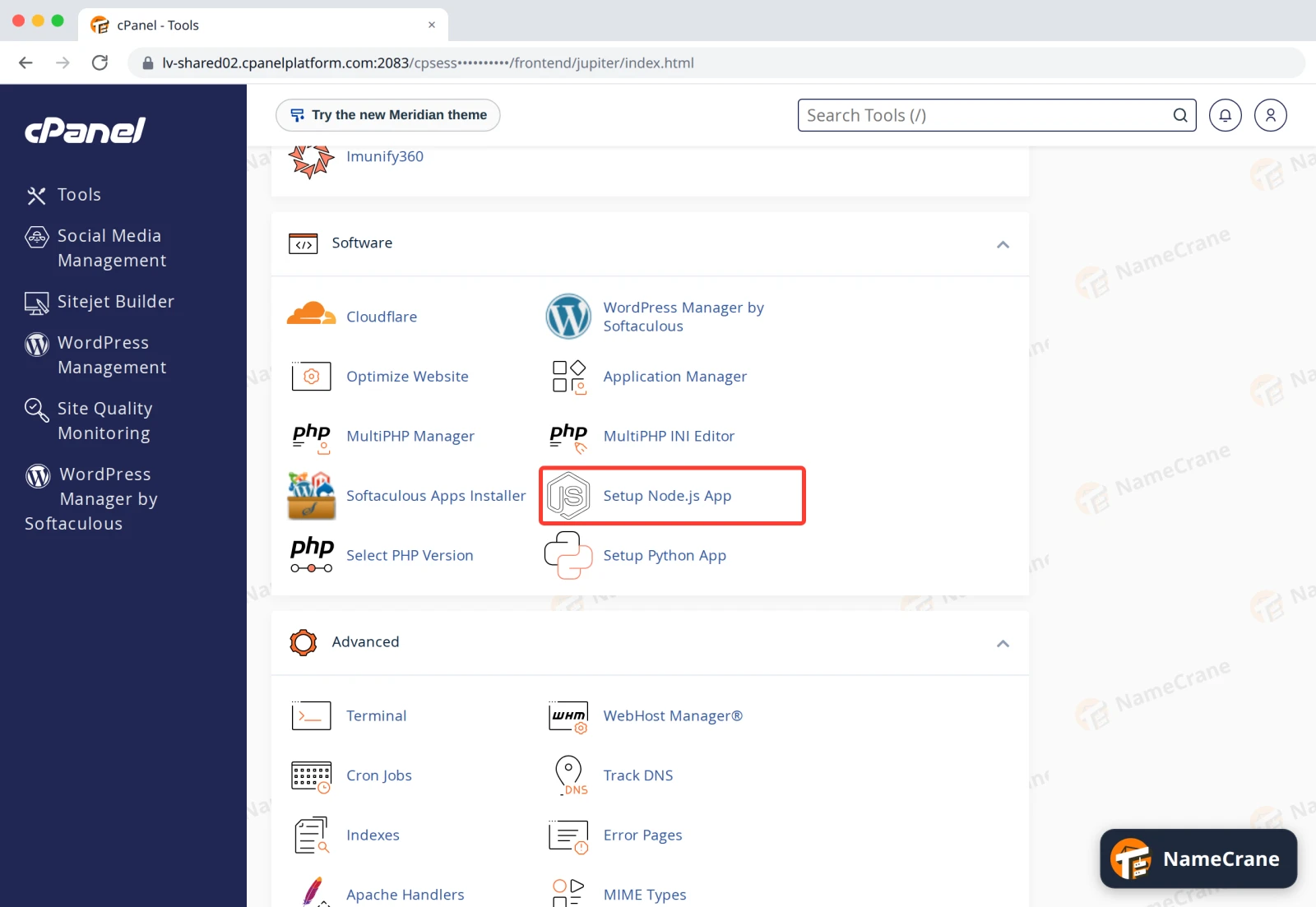
Log in to cPanel. In the Software section, click Setup Node.js App.
-
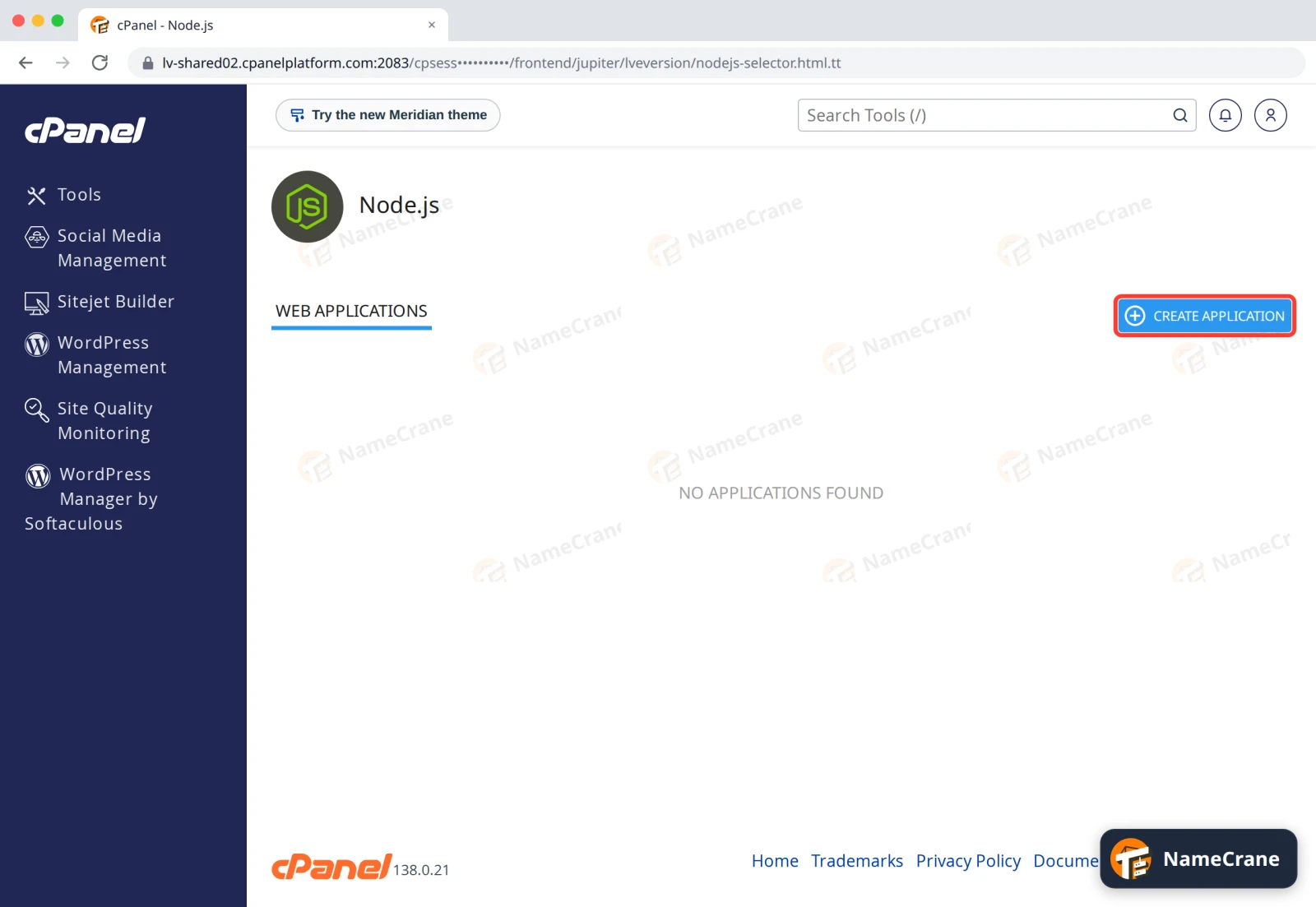
Click CREATE APPLICATION.
-
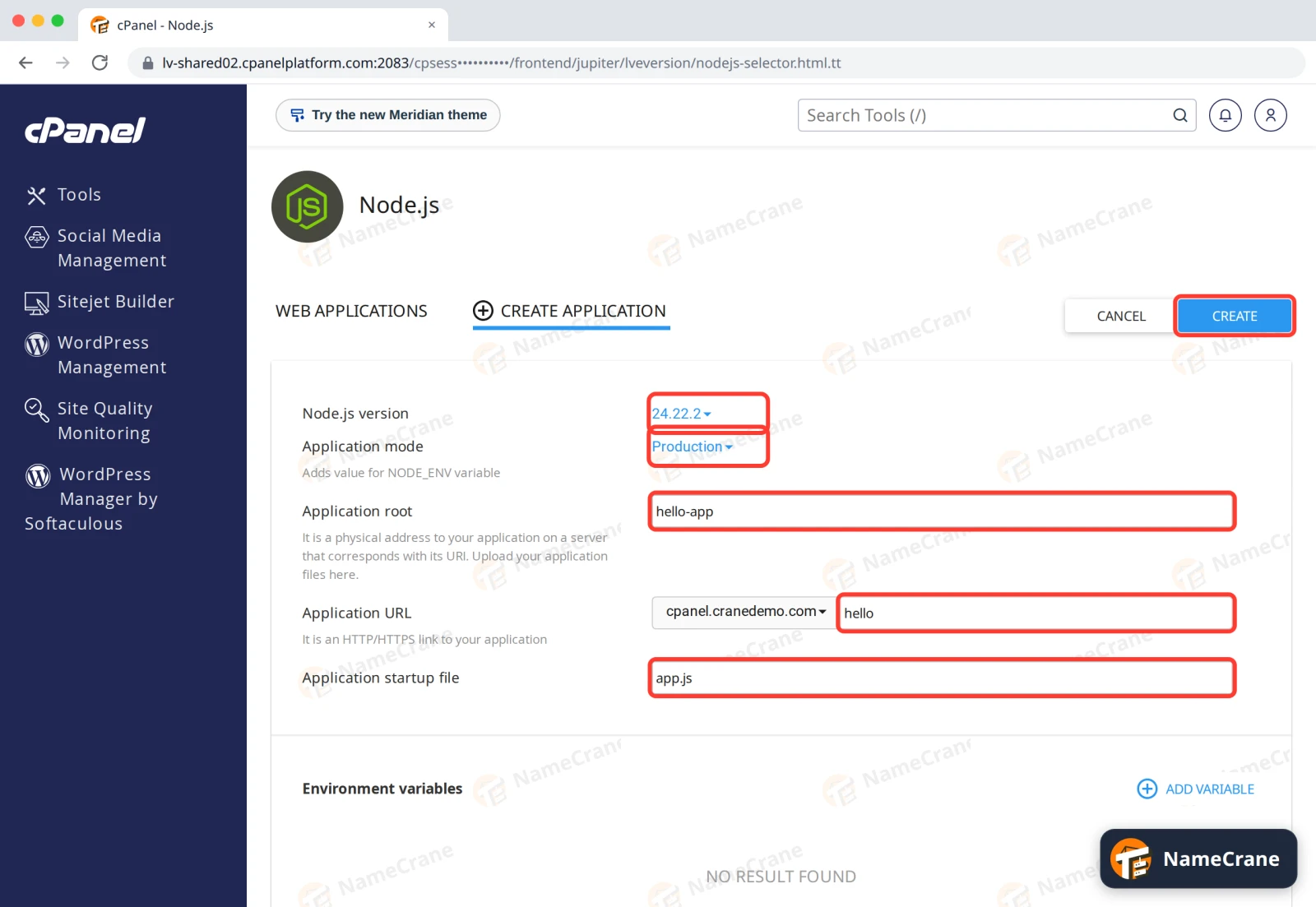
Fill in the form, then click CREATE:
- Node.js version: pick the version your app needs. If you’re not sure, choose the newest.
- Application mode: Production for a live site.
- Application root: the folder for your app’s files, inside your home folder. We used
hello-app. - Application URL: where the app shows up. We chose
cpanel.cranedemo.comand typedhello. Leave the box after the domain empty to run the app on the whole domain. - Application startup file: the file that starts your app, such as
app.js.
-
cPanel creates the app and starts it. At the top you’ll see a command to use your app’s Node.js from SSH or Terminal, for example to run
npmyourself.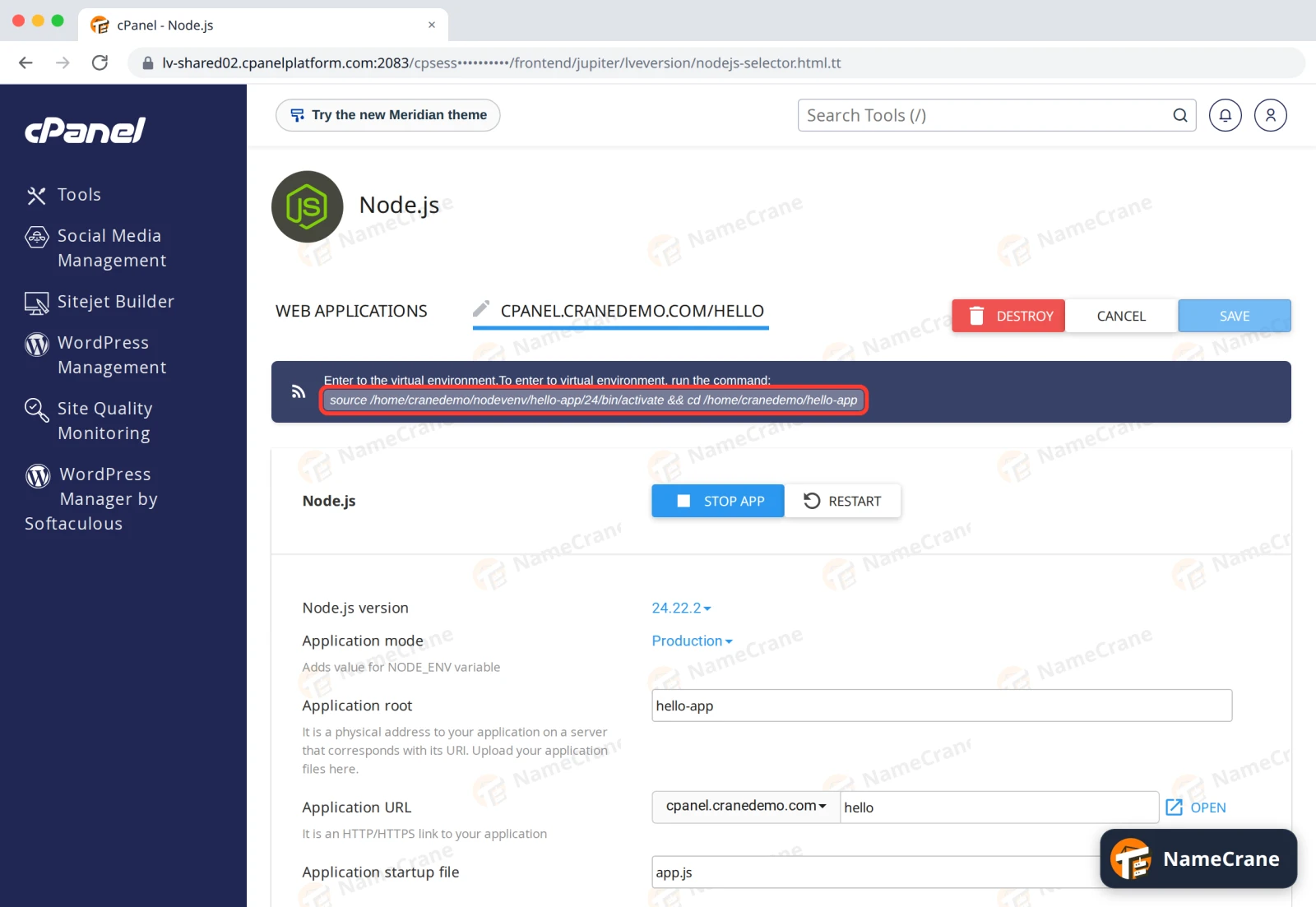
-
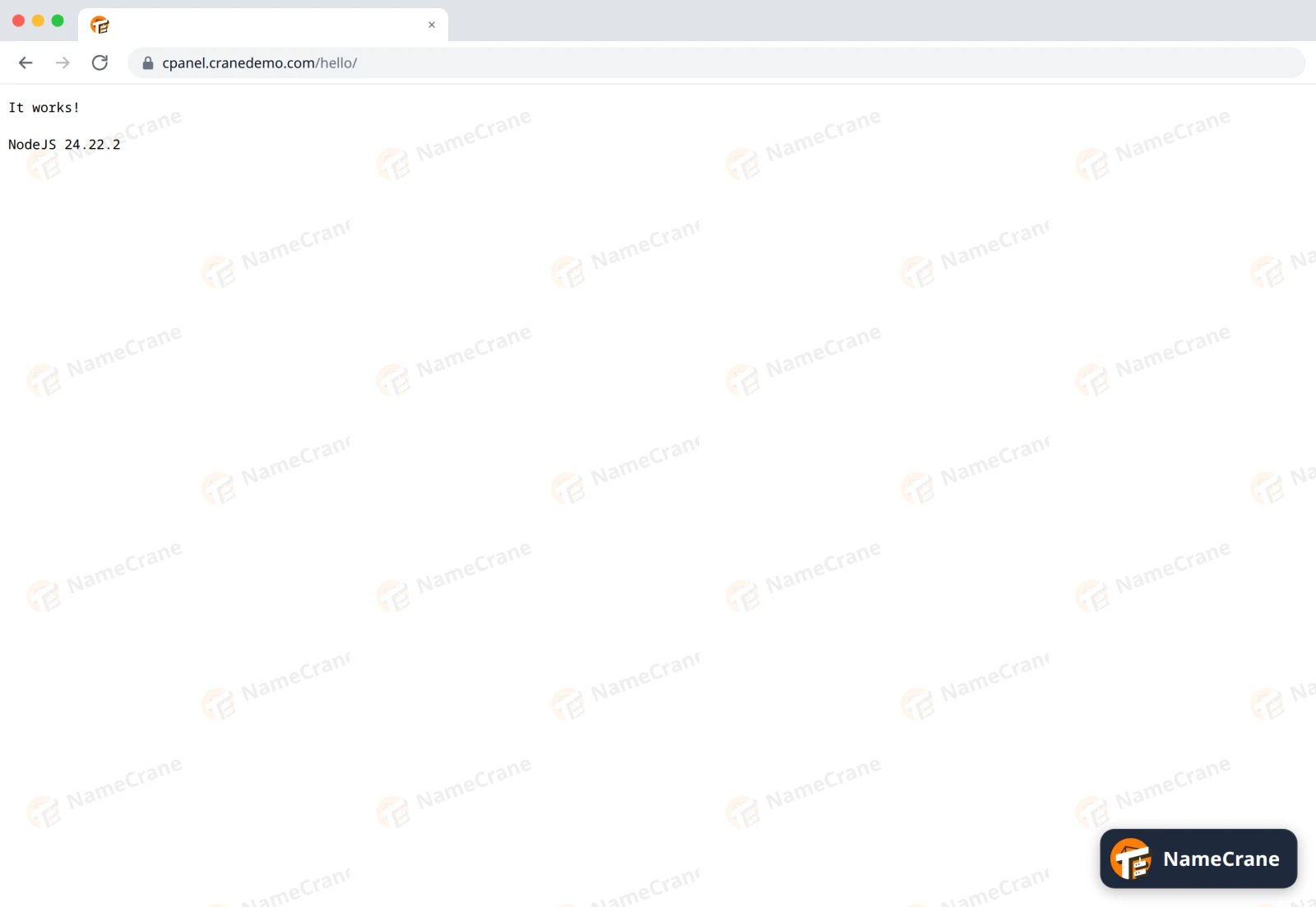
Open your app’s address in a browser. Until you upload your own app, cPanel’s sample app answers with It works!
Put your own app in place
-
Upload your app’s files to the application root (here,
hello-app) with File Manager, replacing the sampleapp.js. Includepackage.json, but leave out thenode_modulesfolder. Your app should start its web server withapp.listen(process.env.PORT || 3000)or similar, not on a fixed port. -
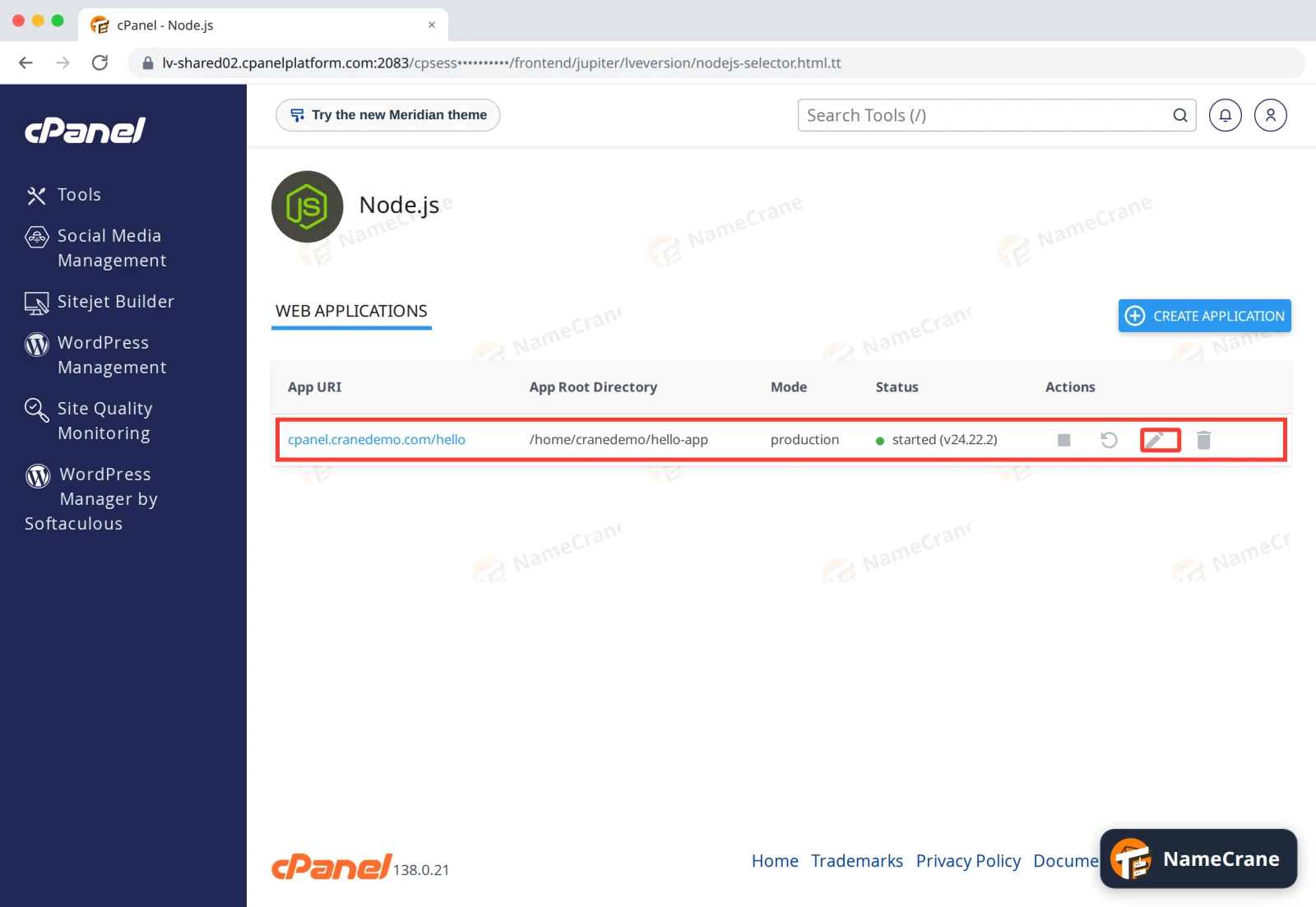
Back in Setup Node.js App, click the pencil next to your app.
-
Under Detected configuration files, click Run NPM Install and wait for it to finish. It installs the packages listed in your
package.json.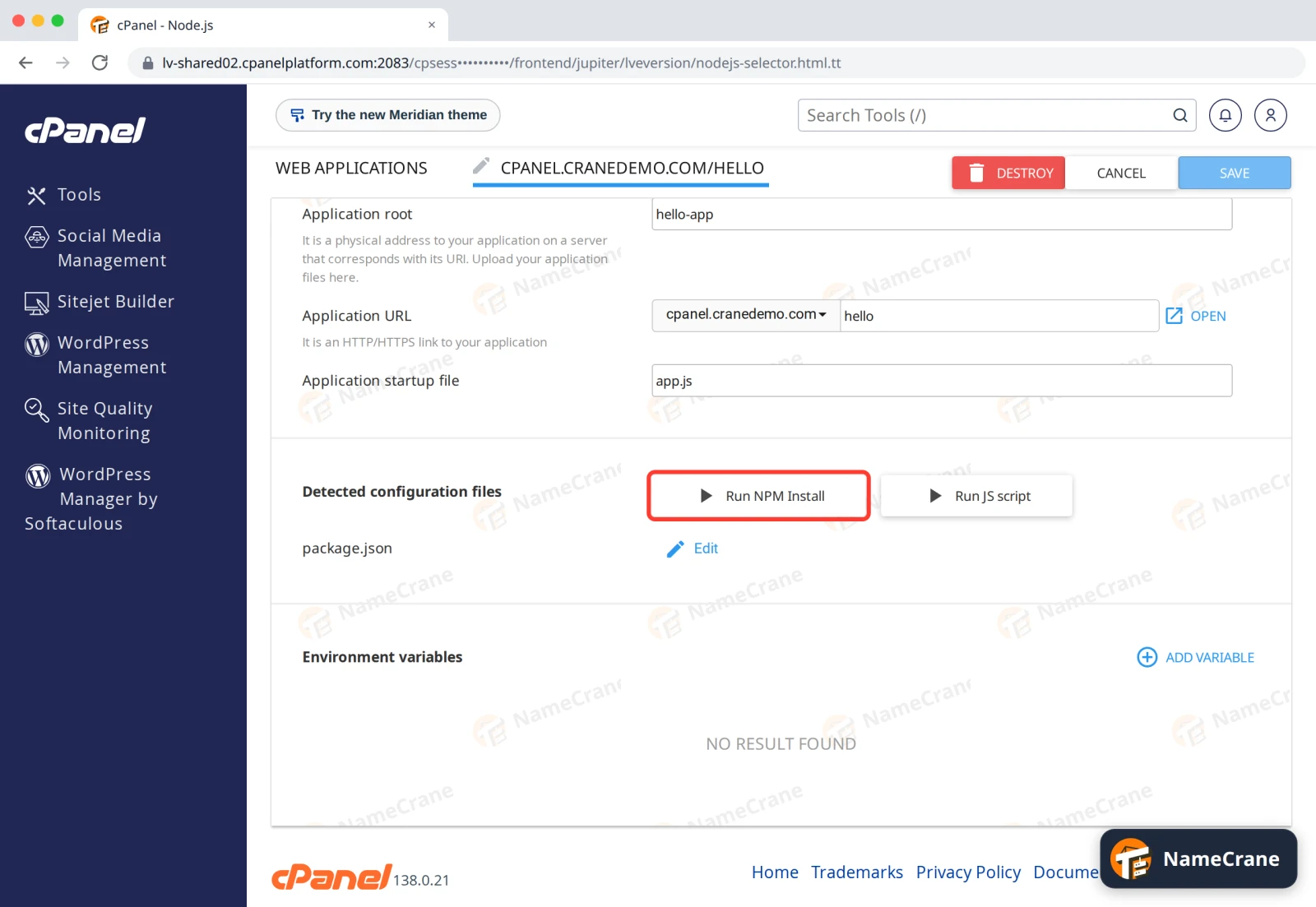
-
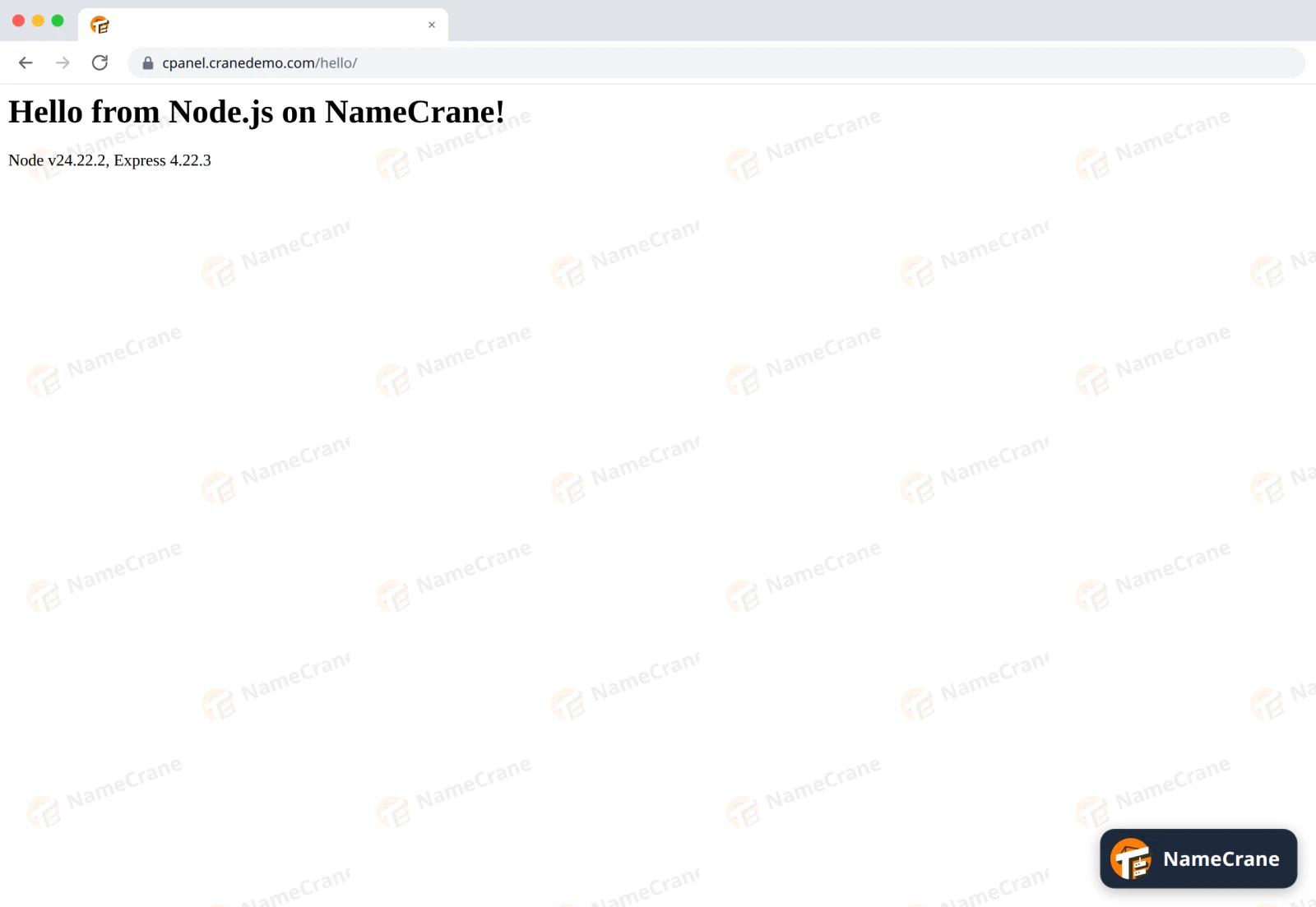
Scroll up and click RESTART. Your app is live.
Tip: After you change your app’s files, click RESTART so the changes take effect.
Create a Python app
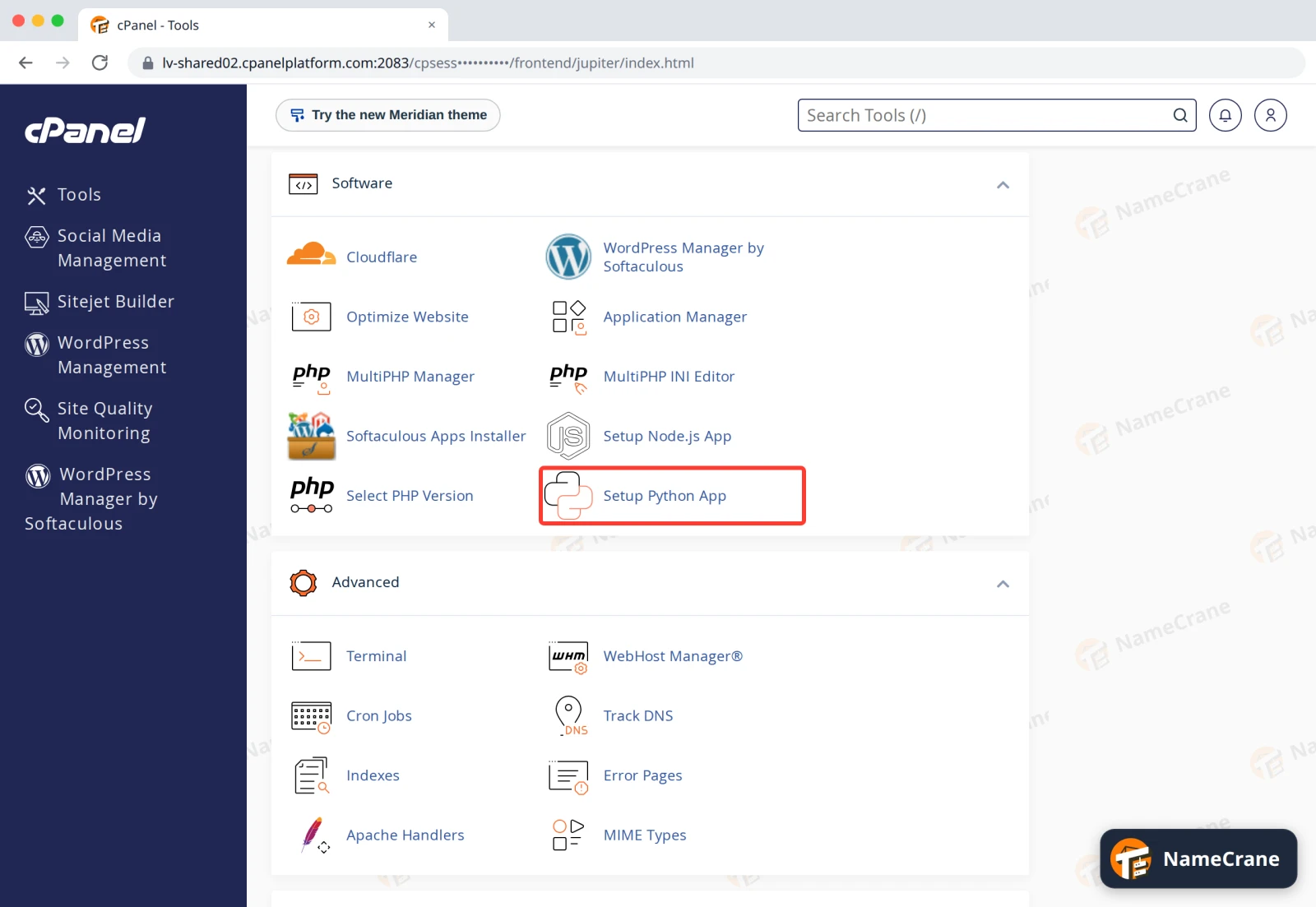
Python apps work the same way. In the Software section, click Setup Python App, then CREATE APPLICATION.
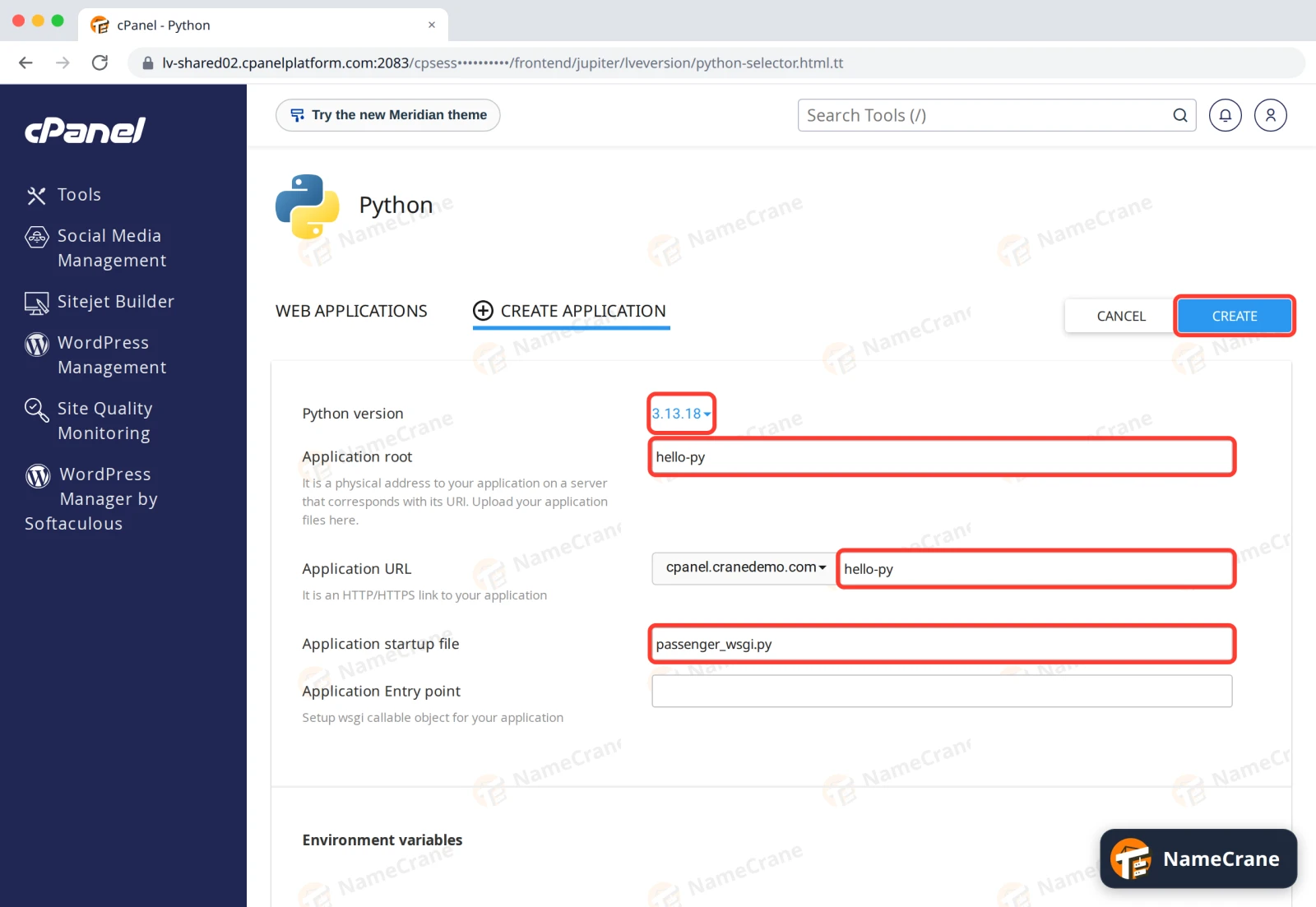
Choose a Python version, an Application root and an Application URL. Type passenger_wsgi.py as the Application startup file. cPanel fills in the Application Entry point as application for you. Click CREATE.
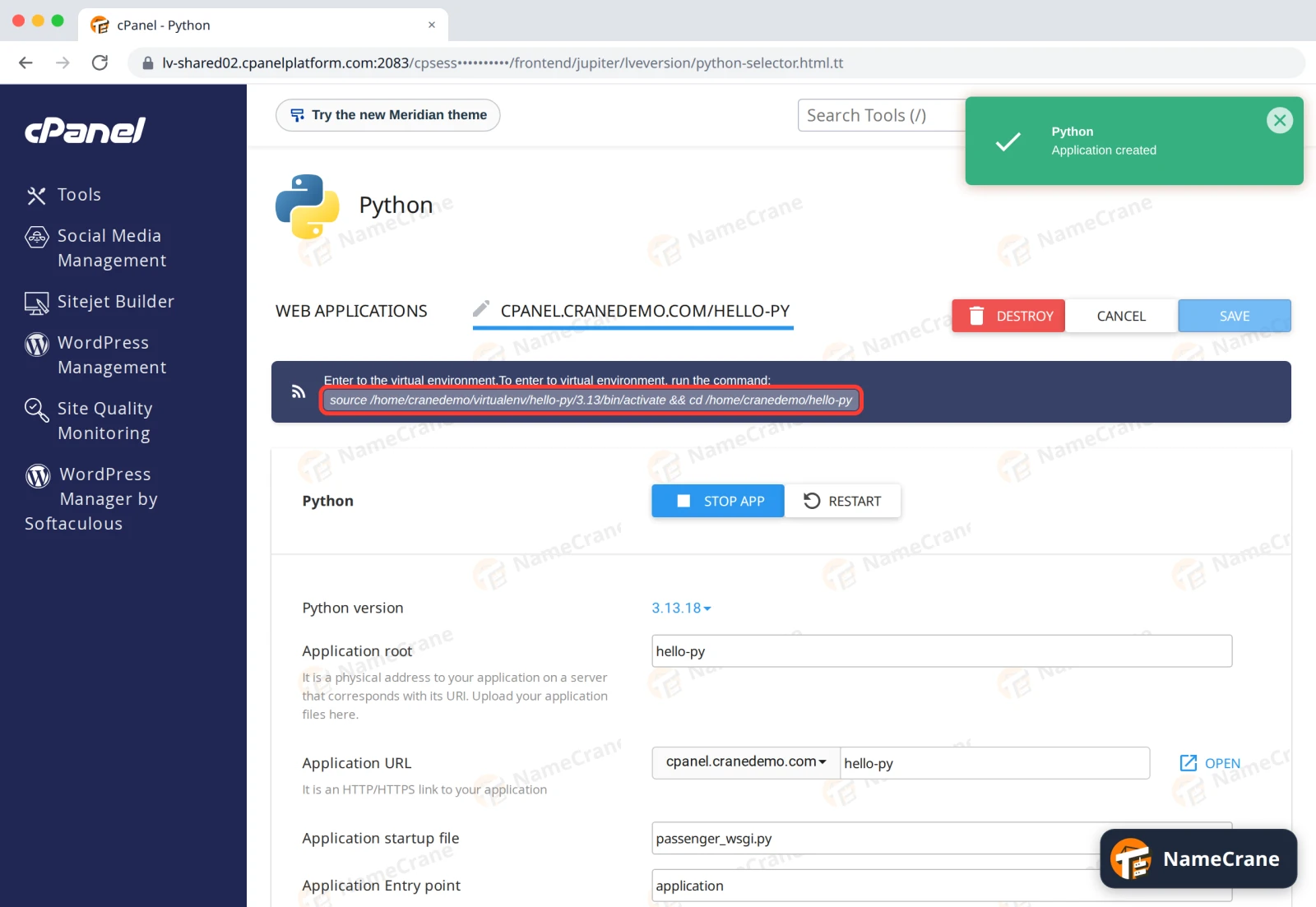
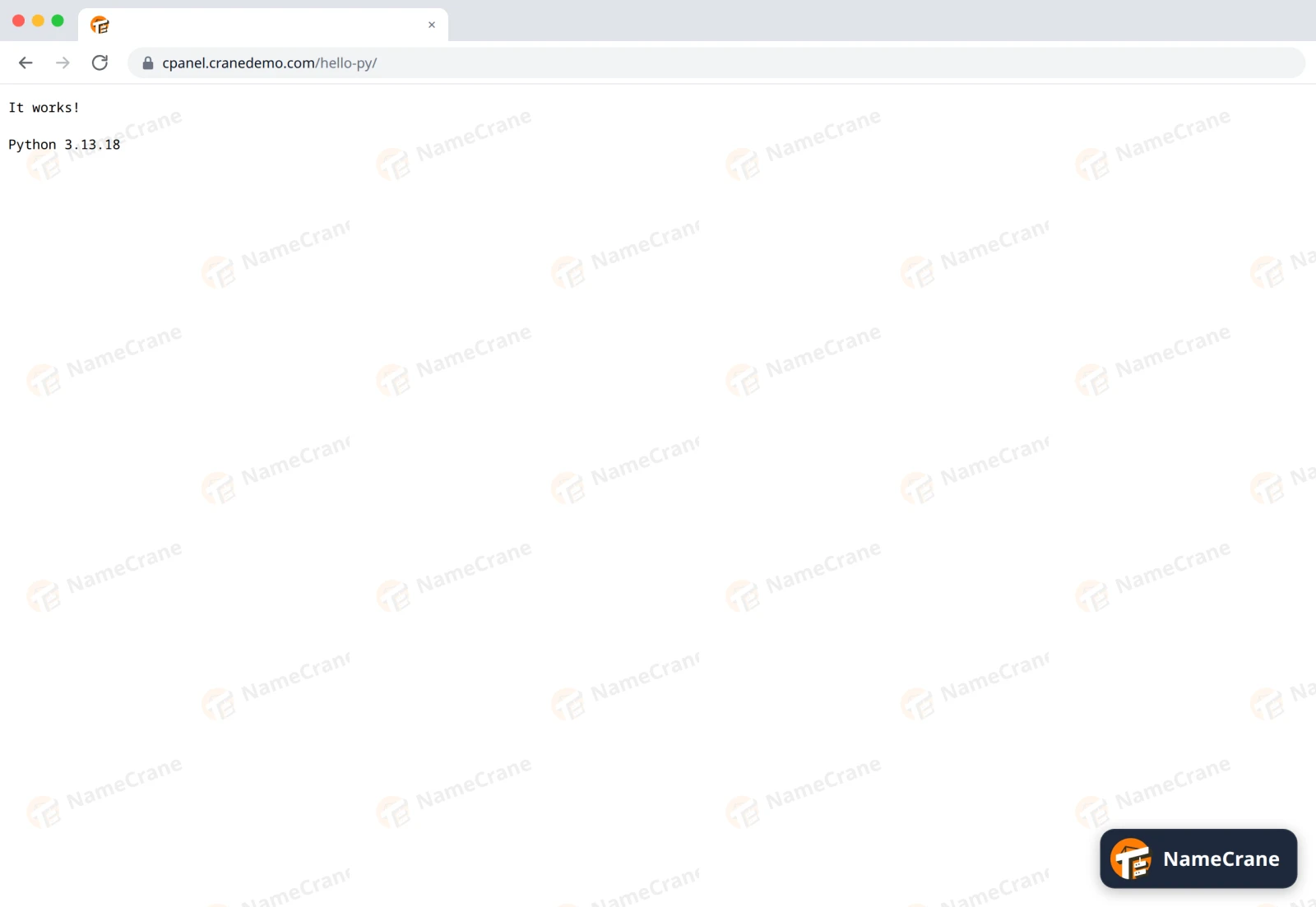
cPanel creates the app with a sample passenger_wsgi.py and starts it.
To use your own app, upload its files to the application root, including requirements.txt. passenger_wsgi.py must provide your app as application. For a Flask app in app.py, that’s the one line from app import app as application. Then:
- Open your app (the pencil in the list). Under Configuration files, type
requirements.txtin the box and click Add. - Click SAVE at the top.
- Click Run Pip Install and choose
requirements.txt. It installs your packages. - Click RESTART.
Remove an app
Open the app and click DESTROY, then AGREE. The app stops and disappears from the list. Its files stay in the application root: delete that folder in File Manager if you don’t need them.
Troubleshooting
| Problem | What to do |
|---|---|
| The app’s address shows 500 Internal Server Error | Look in stderr.log in the application root: your app writes its errors there. A missing package is a common cause: run Run Pip Install or Run NPM Install, then RESTART. |
| The app’s address shows 403 Forbidden | The app is stopped. Open it and click START APP. |
| Run Pip Install says “An error occured during installation of modules” | In our test this showed up even though everything installed fine: pip only warned that a newer pip exists. Click RESTART and check your app. If it still fails, look in stderr.log. |
| Run Pip Install is greyed out | Add requirements.txt under Configuration files and click SAVE first. |
| My changes don’t show up | Click RESTART in Setup Node.js App or Setup Python App. |
| The app uses too much memory or gets slow | Check Resource Usage. Apps share your plan’s memory and process limits with your website. |
Snagged on something? Contact support and we’ll get you sorted.